

1
Create the app
In the Dev Dashboard, click Create app,
then name it under Start from Dev Dashboard and click Create. Merchants
see this name on the install screen.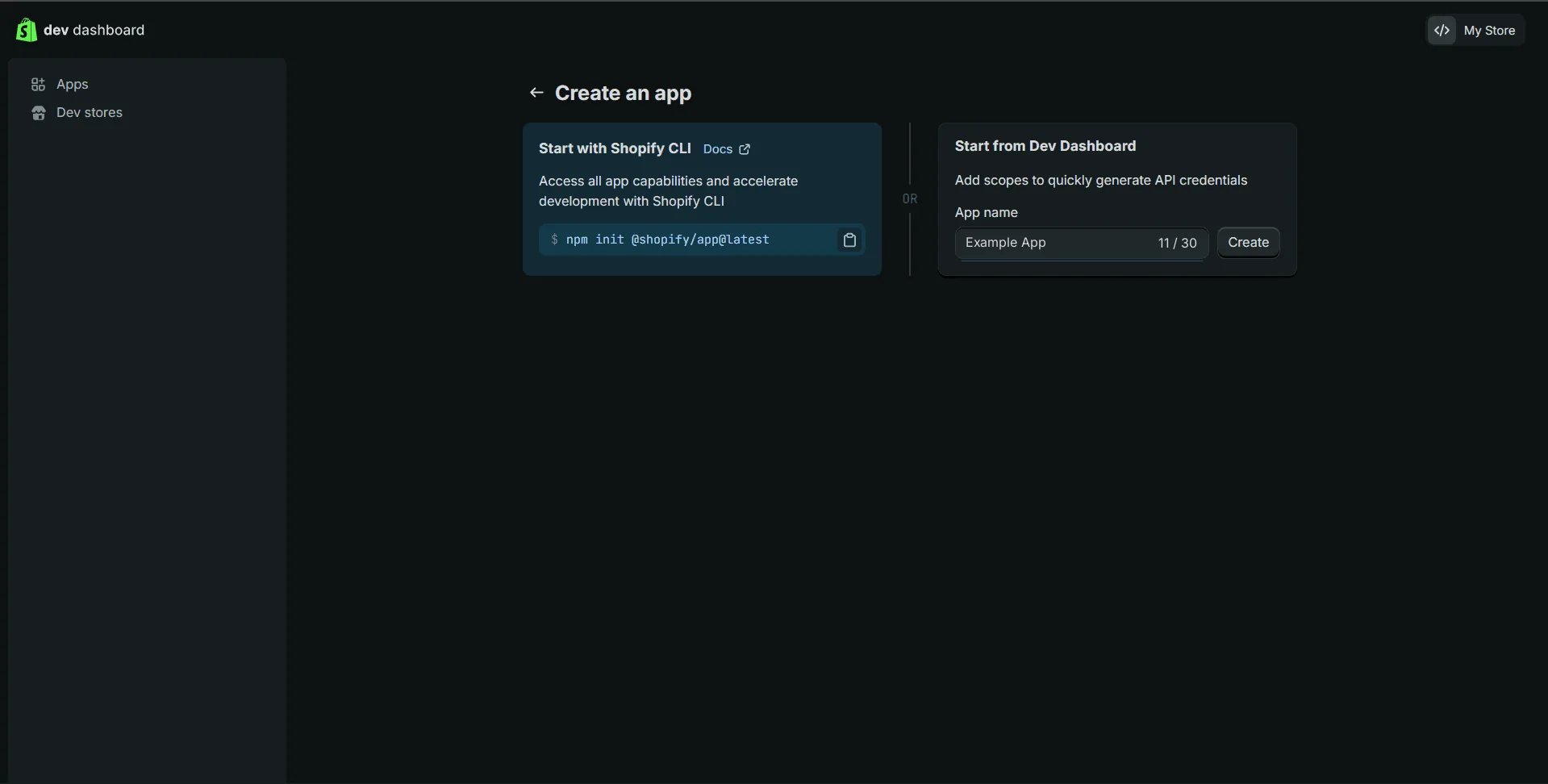
2
Set the app URL
Shopify opens the app’s first version. Under URLs, set App URL to your
product’s address. This is where a merchant lands after installing, and when
the app opens from their admin.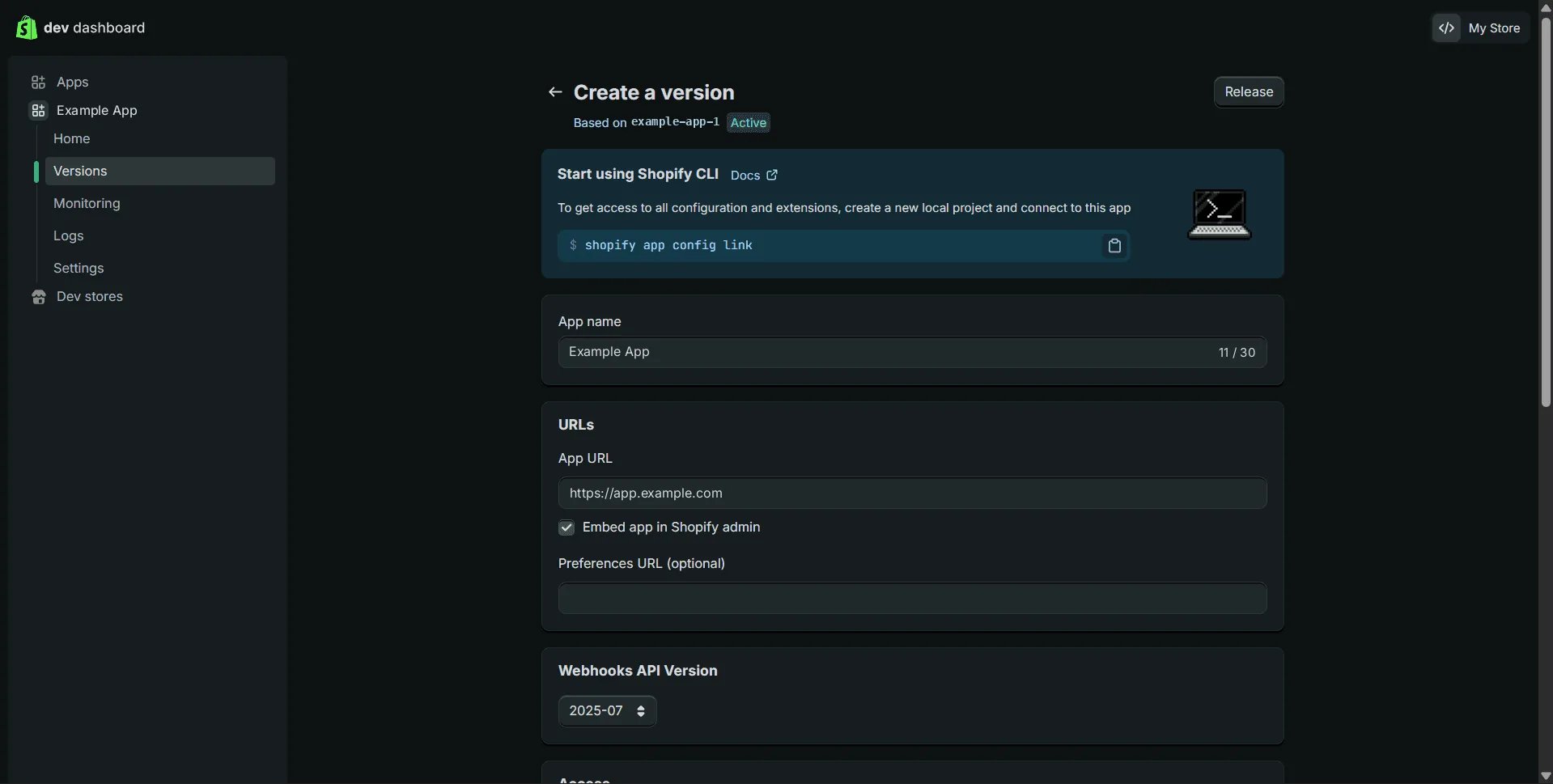
3
Choose the scopes and add your redirect URL
Further down, under Access, set the Scopes the tools need, either with
Select scopes or typed in and separated by commas.
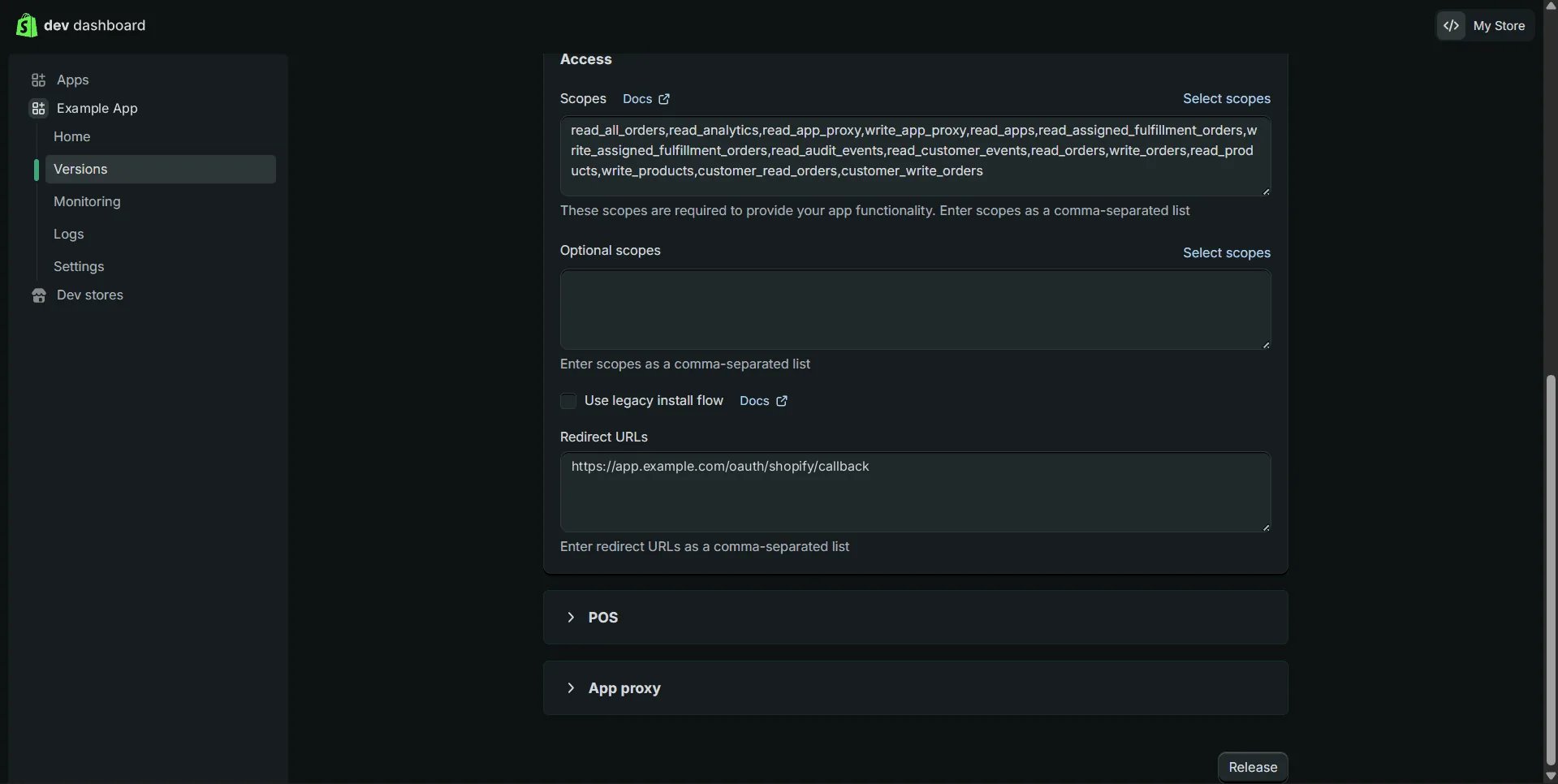
scopes_for(shopify.TOOLS) lists them, or
scopes_for over just the tools you hand out. Below them, add your
callback route under Redirect URLs.read_products, and the install
screen listed every scope of the released version. The flow still sends the
list in its link, separated by commas, and the server constant on
Shopify’s provider page already declares that separator.For development, a plain http://localhost callback works: Shopify accepted
http://localhost:8765/callback on a store installing the app for the first
time.Leave Use legacy install flow unticked.4
Release the version
Click Release at the top of the page, then Release again in the dialog.
Nothing you set reaches a merchant until a version with it is released.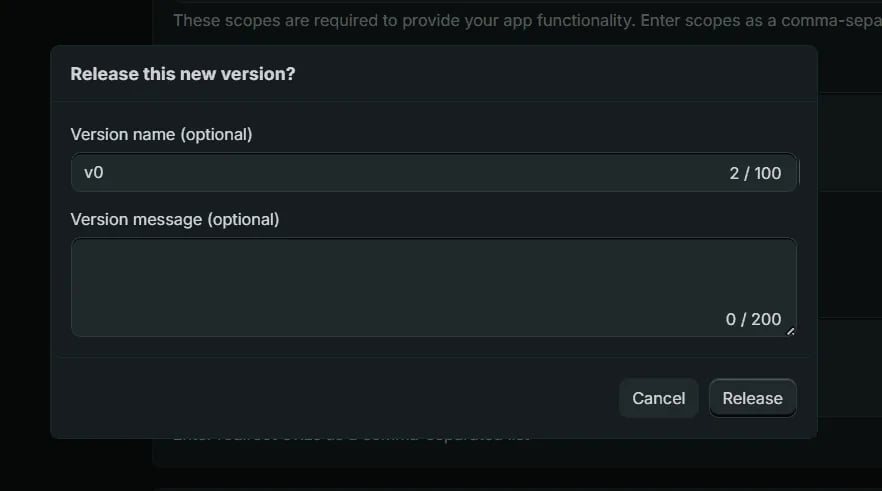
5
Copy the client ID and secret
Open the app’s Settings and copy the Client ID and Secret from
Credentials.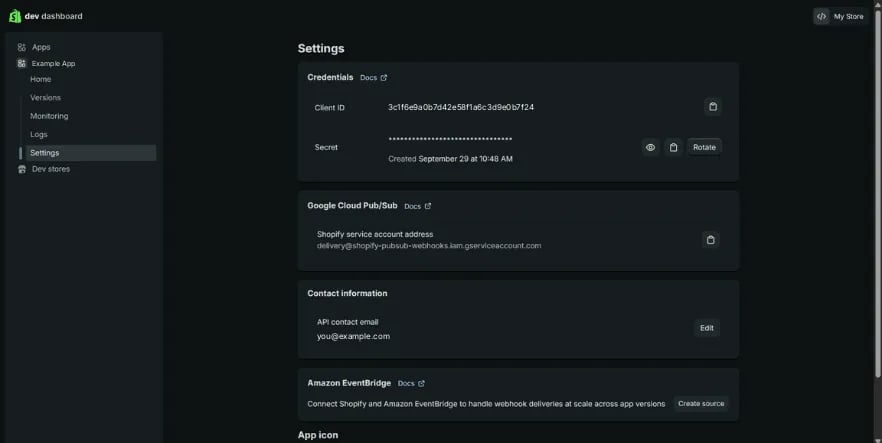
6
Connect a store
Your “Connect Shopify” button asks for the merchant’s store, then opens the
link that 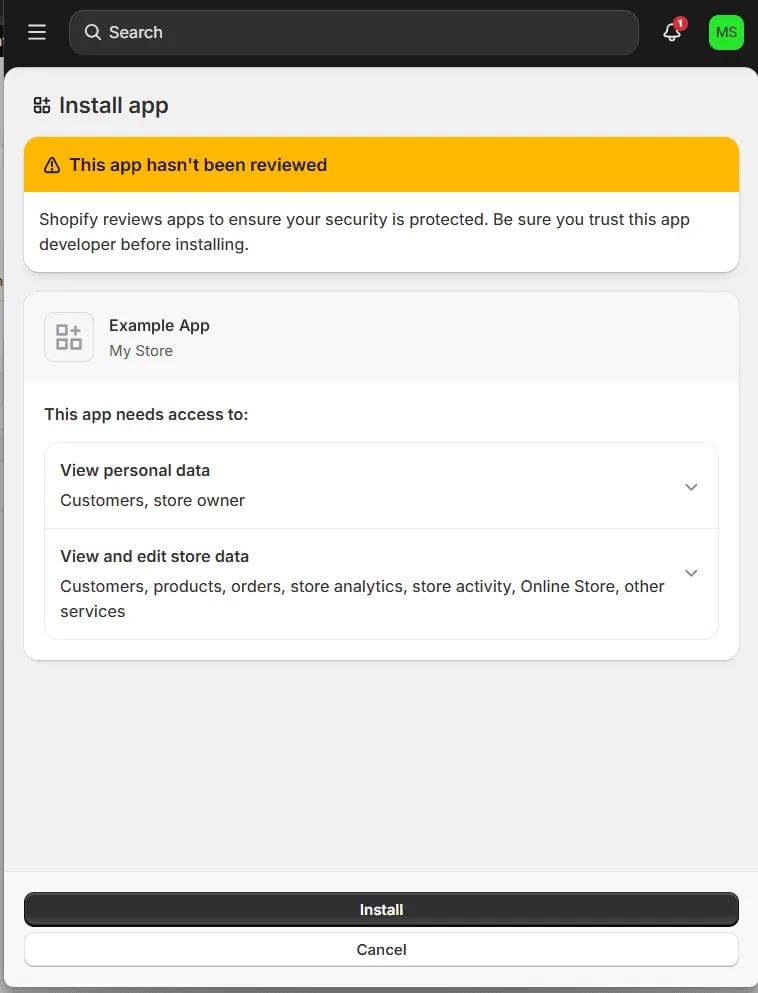
flow.authorize() builds on
that store. The merchant reviews what the app needs and clicks Install.hmac parameter before anything else. It’s
an HMAC-SHA256 of the other query parameters, keyed with your client secret.
Charter doesn’t check it for you, because it’s Shopify’s own convention rather
than part of OAuth. Then exchange the code, with exchange_params={"expiring": "1"}
on the server so Shopify issues an expiring offline token and a refresh token.
Public apps must use that token for the GraphQL Admin API by January 1, 2027.
Store the shop and the grant against the user. The full shape, including the
per-call store and the refresh, is in the
Shopify provider page.When it does not work
“The redirect_uri is not whitelisted”
“The redirect_uri is not whitelisted”
The flow sent a URL that isn’t under Redirect URLs in the active
version. Add it, then release a new version, because an edit that isn’t
released doesn’t count.On a store where the app is already installed, that may not be enough.
In a live test, redirect URLs added in later released versions were all
refused on such a store, over
http and https alike, and with the app
URL moved onto the same host. The URL the app had when it was installed
was accepted. After uninstalling the app and installing it again through
the flow, the new URL was accepted. So test a new URL on a store that
hasn’t installed the app, or reinstall it.A scope you added is not granted
A scope you added is not granted
Scope changes reach a store only through a released version, and a store
that installed earlier keeps its old grant until the merchant approves the
new scopes. Release, then send the merchant through the link again.
403: “Required access: … access scope”
403: “Required access: … access scope”
The grant doesn’t include the scope that tool needs. Add the scope, release,
and have the merchant reconnect.
Related
- Shopify OAuth — the per-store server,
shop=per call, and what you store - Getting the grant — the two routes,
stateand PKCE, inside your app - Shopify — the pack, and the credential shapes it accepts
- Set up Shopify — a store you own, with no consent route