

1
Start a new integration
Open notion.so/profile/integrations
and click New integration.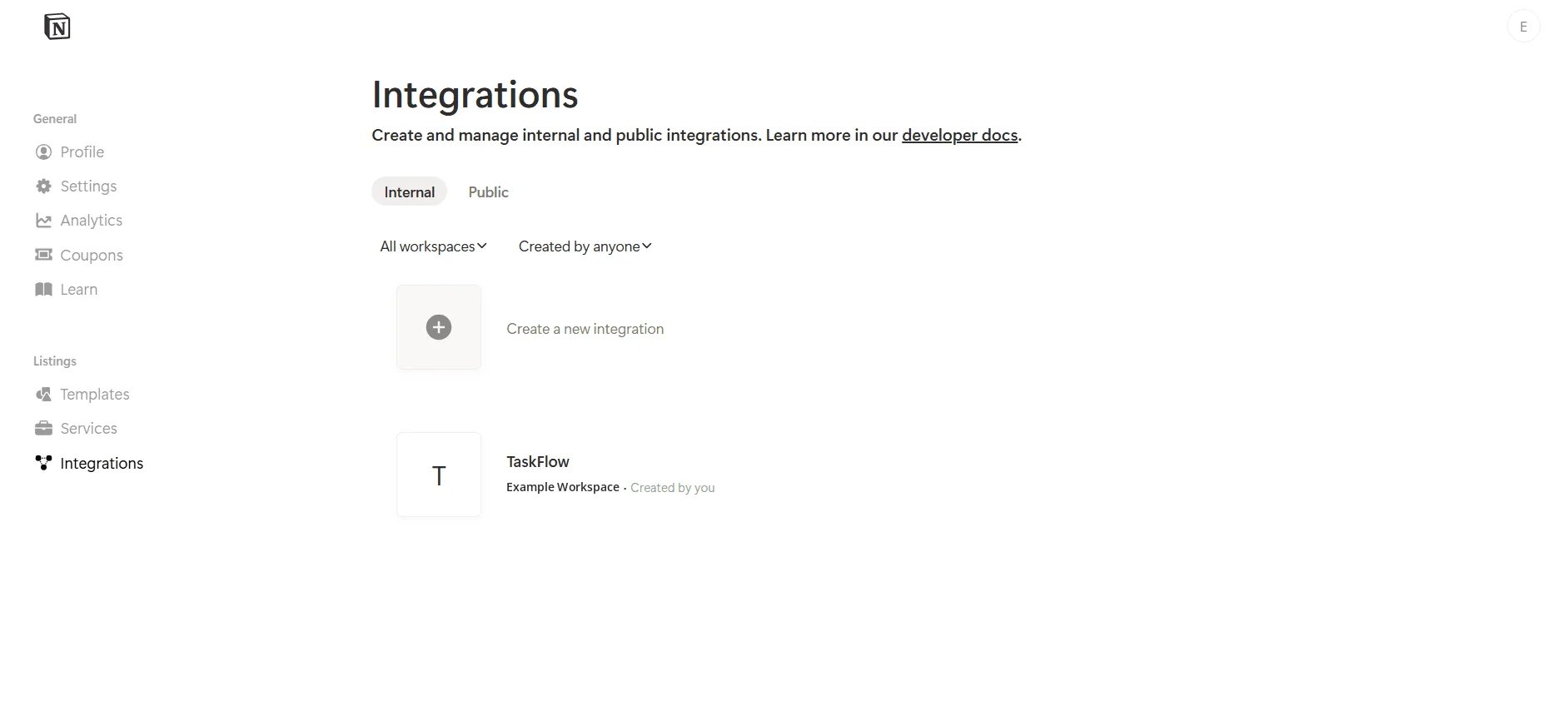
2
Make it public
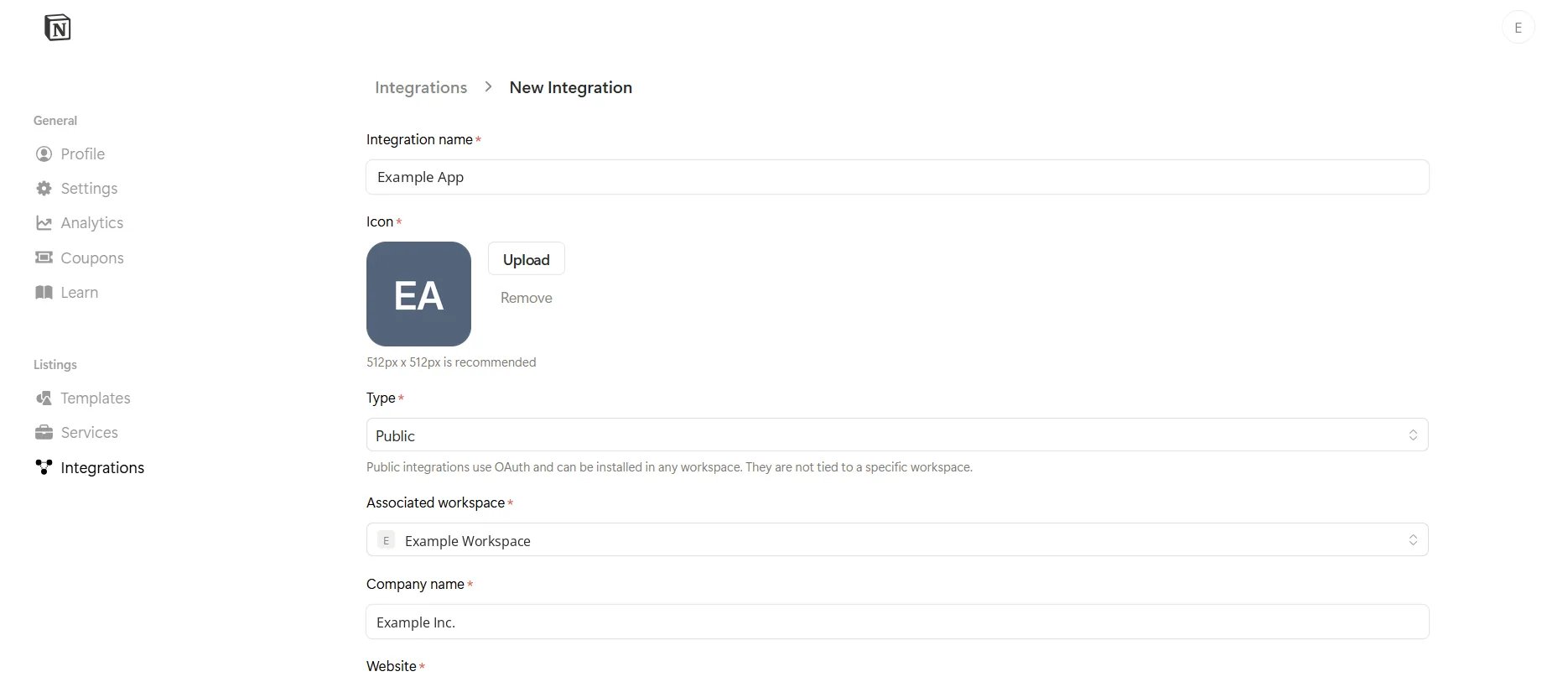
- Integration name and Icon: what your users see on the consent screen.
- Type: Public. An internal integration can’t use OAuth, and a public one isn’t tied to a single workspace.
- Associated workspace: where you’ll manage it. Users in any workspace can still connect.
- Company name, Website, and the privacy policy and terms links further down: Notion requires them for a public integration and shows them to your users.
3
Add your redirect URI
Further down the same form, under OAuth domains & URIs, add your app’s
callback route under Redirect URIs, then click Create.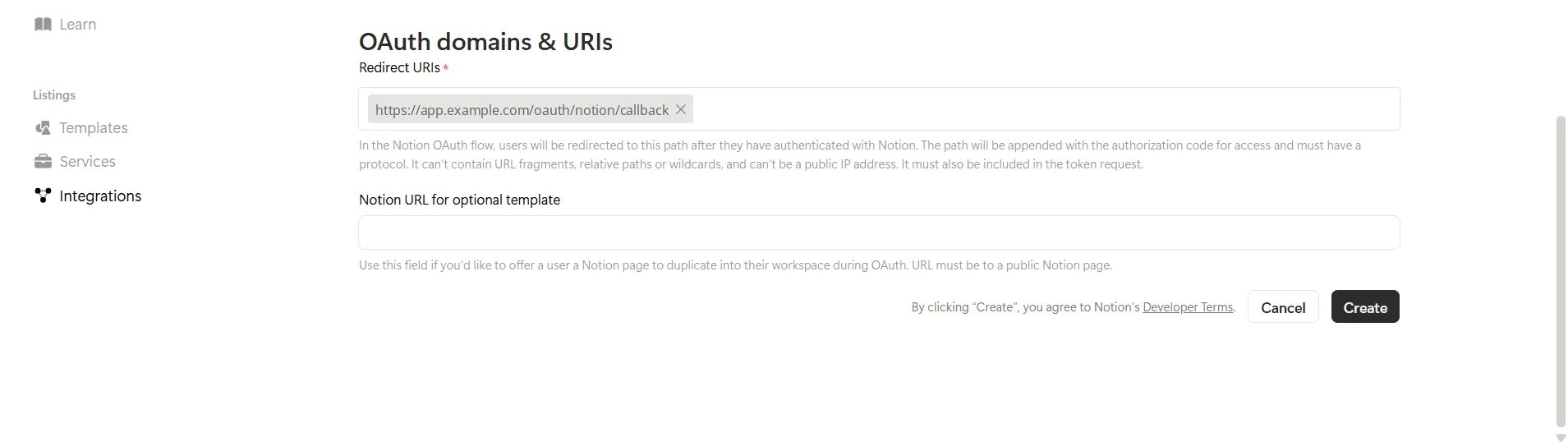
4
Tick the capabilities the tools use
On the integration’s Configuration tab, under Capabilities, tick what
the pack’s tools declare: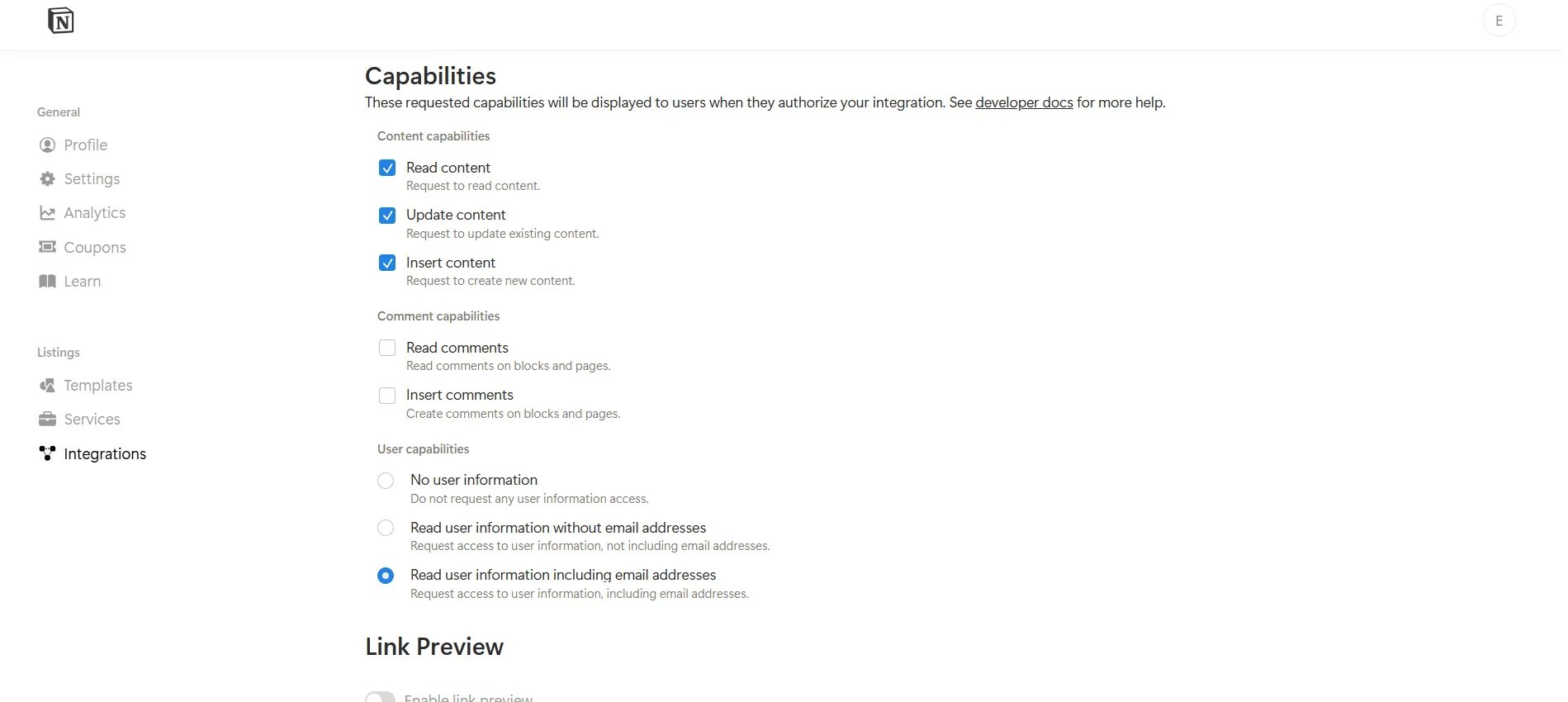
- Read content, Update content and Insert content
- Read comments and Insert comments
- Read user information, with or without email addresses
403 without them. Notion lists every
capability on the consent screen, so leave off any your tools don’t use.
Save changes.5
Copy the client ID and secret
Still on Configuration, copy the OAuth Client ID, then click Show
next to OAuth Client Secret and copy that too.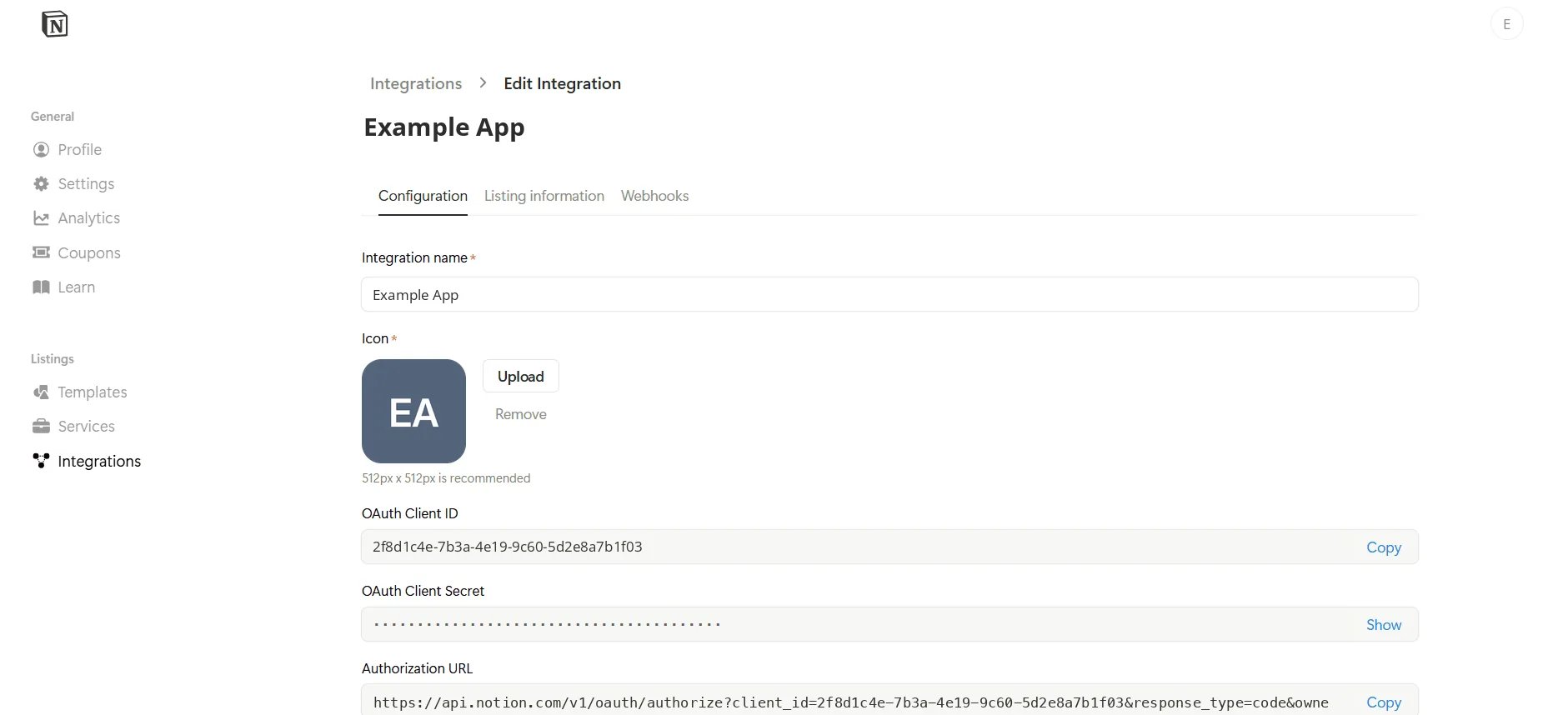
flow.authorize() builds the same
link, with state and PKCE added.6
Connect a workspace
Your app’s “Connect Notion” button opens that link. Notion shows the
capabilities you ticked, and the user clicks Select pages to choose what
your app can reach.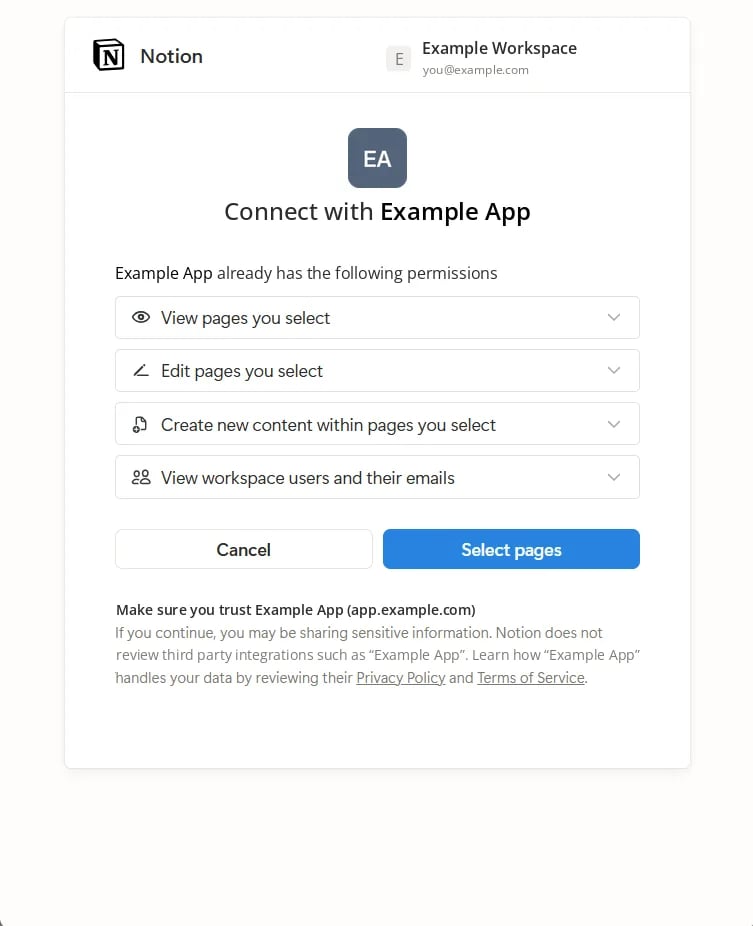
object_not_found, and if they picked nothing, search
comes back empty. The pages can be changed later, from the integration’s entry
under Settings → Connections in their workspace.The server constant and the per-user client are in the
Notion provider page. The link asks for no
scopes, since the capabilities you ticked play that role, and Notion’s token
endpoint takes JSON rather than a form. The constant declares both.When it does not work
“Missing or invalid redirect_uri”
“Missing or invalid redirect_uri”
The flow sent a URI that isn’t listed under Redirect URIs, character for
character. A trailing slash is enough to break the match.
Every call succeeds and finds nothing
Every call succeeds and finds nothing
The user connected but shared no pages, or not the ones you expect. They
can add pages from the integration’s entry under Settings → Connections.
403 on comment tools only
403 on comment tools only
The integration doesn’t have Read comments or Insert comments. Tick
them under Capabilities, then have the user connect again so their grant
includes them.
Related
- Notion OAuth — the server constant and the per-user client
- Getting the grant — the two routes,
stateand PKCE, inside your app - Notion — the pack, and how a database differs from the table inside it
- Set up Notion — your own workspace, with an internal integration