

1
Start a new registration
Open App registrations
in the Microsoft Entra admin center and click New registration.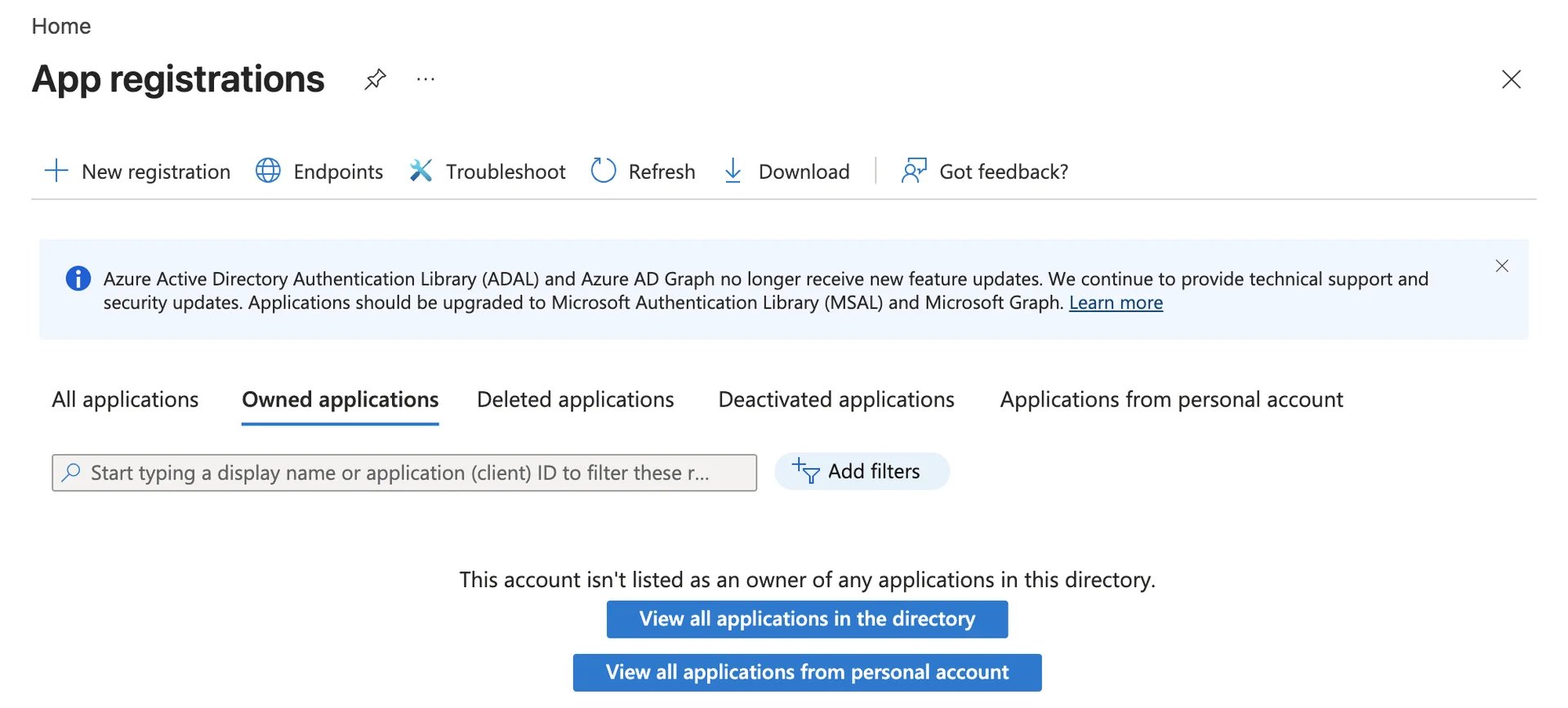
2
Choose who can connect, and add your redirect URI
The registration form has three fields:
- Name: what your users see on the consent screen.
- Supported account types: who can sign in. For a product, pick the option that includes personal Microsoft accounts, so both work or school mailboxes and Outlook.com mailboxes can connect. The app’s overview then reads All Microsoft account users. Pick one organisation only, and the app serves that organisation alone, through a different endpoint: see the server.
- Redirect URI: choose Web as the platform and enter your app’s
callback route, such as
https://app.example.com/oauth/microsoft/callback. It has to use HTTPS unless it’slocalhost, and match the flow’sredirect_uricharacter for character.
3
Copy the client ID
The app opens on its Overview. Copy the Application (client) ID.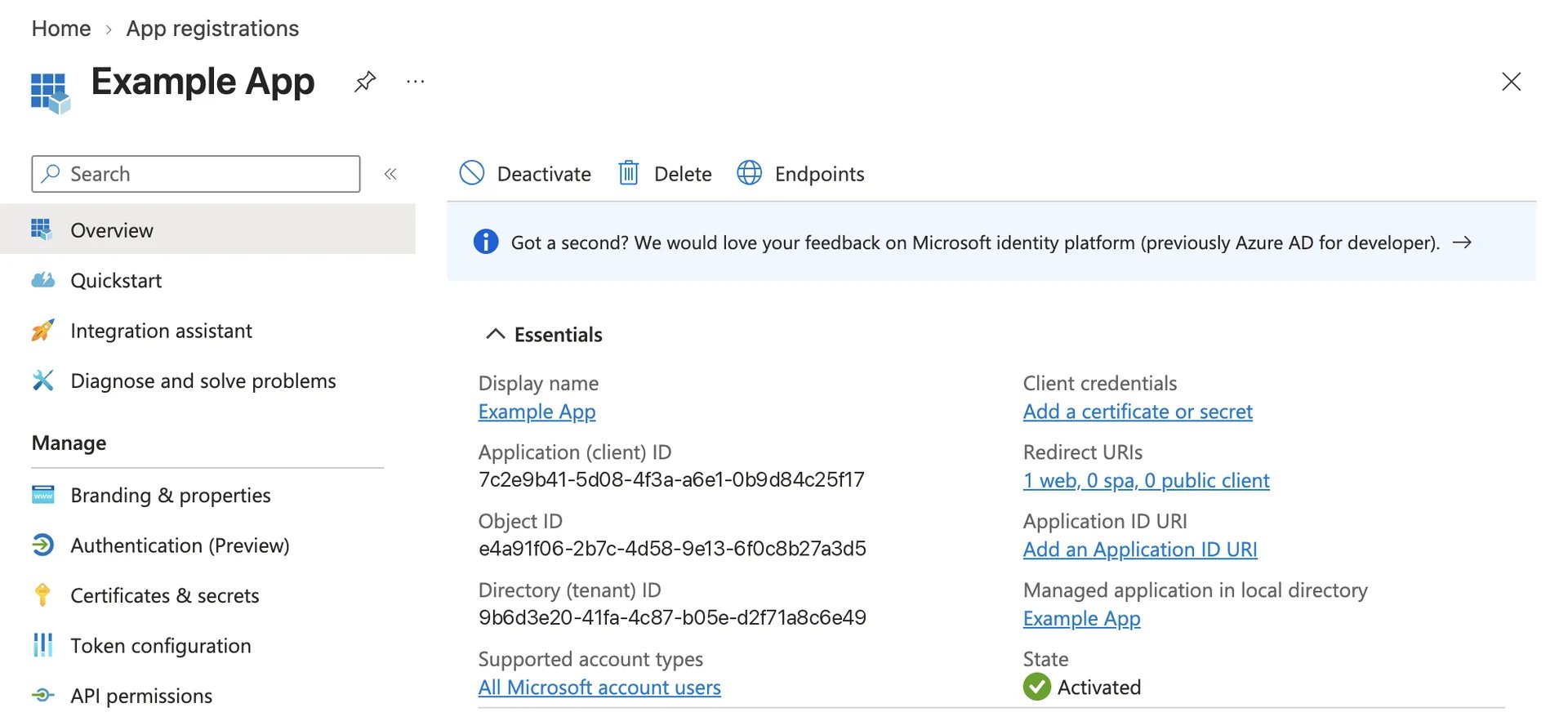
4
Create a client secret
Under Manage, open Certificates & secrets. On the Client secrets tab,
click New client secret, give it a description, and pick an expiry.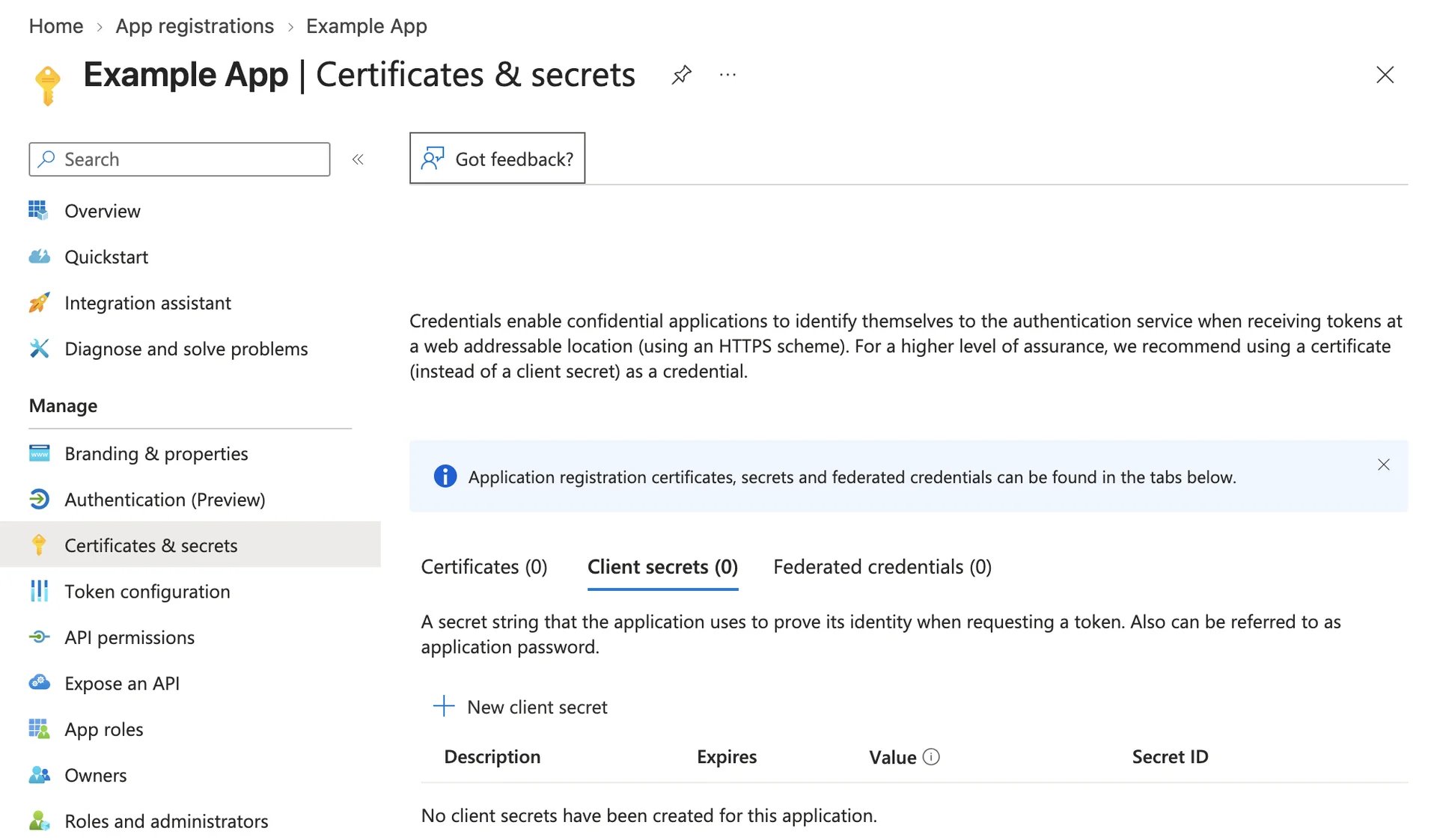
5
Add the Graph permissions
Under Manage, open API permissions and click Add a permission →
Microsoft Graph → Delegated permissions. Tick: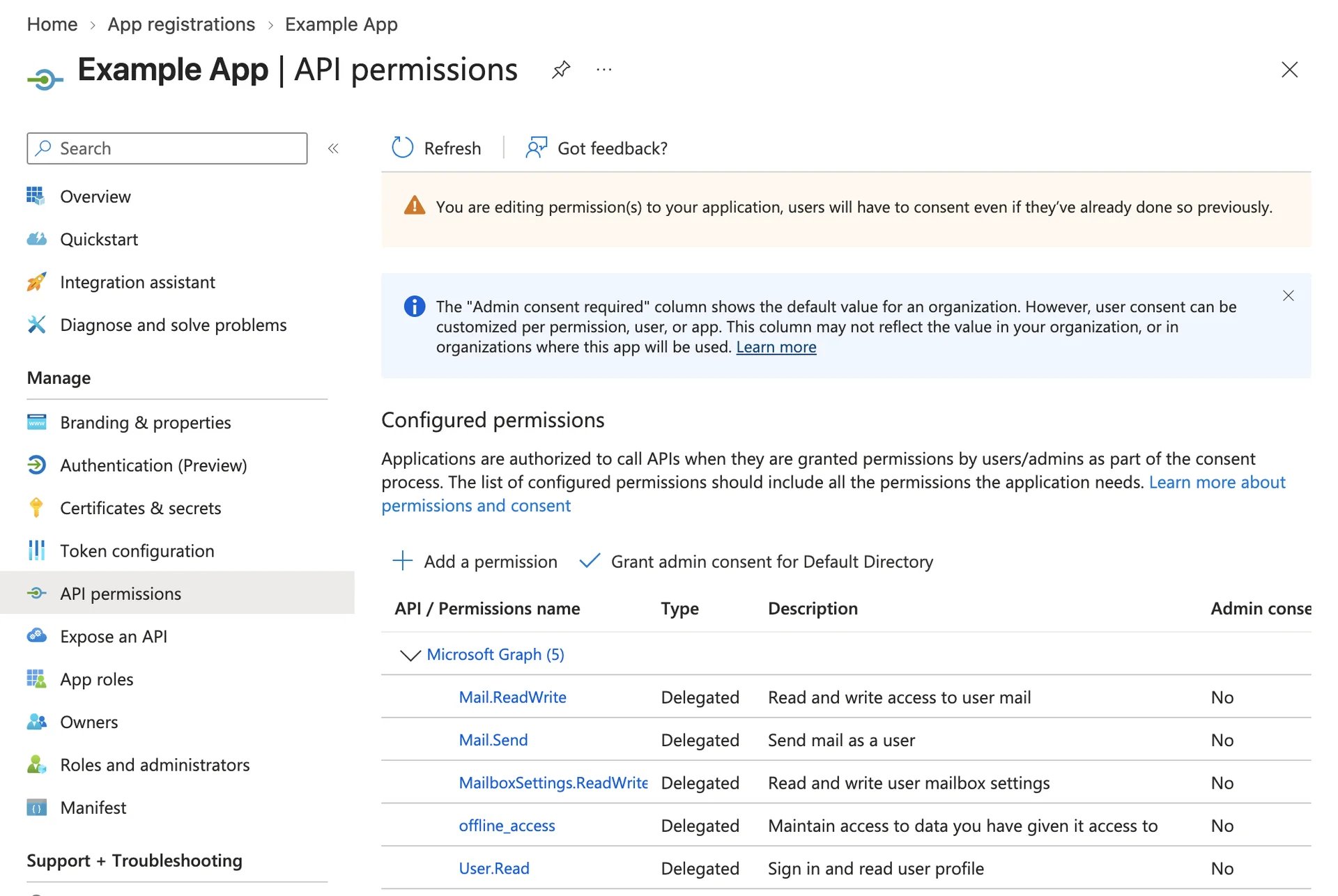
Mail.ReadWrite,Mail.SendandMailboxSettings.ReadWriteUser.Read, which Entra adds to a new registration by itselfoffline_access, which is how Microsoft issues a refresh token
translate_exchange_ids, which needs User.ReadBasic.All. Add
it too if you hand that tool out.This list is what an administrator approves when they consent for a whole
organisation. Each user is asked for what your consent link requests, which
scopes_for builds from the tools you hand out:
Scopes. None of these permissions needs an
administrator, as the Admin consent required column shows.6
Get verified, for other organisations' users
Skip this if your users sign in with personal Microsoft accounts, or all belong
to the organisation the app is registered in.Users in other organisations may not be allowed to consent to an app from an
unverified publisher. Since November 2020, Microsoft has blocked them from
consenting to a newly registered multitenant app that asks for more than
sign-in, wherever risk-based step-up consent is on. Many organisations also let
their users consent only to verified publishers. Either way, the user sees
Need admin approval instead of your consent screen, and until an
administrator consents for the organisation, they can’t connect.Publisher verification removes that block. It needs:
- An account in the Microsoft AI Cloud Partner Program that has completed verification.
- An app registered with a work or school account. One registered with a personal Microsoft account can’t be verified, so register the production app in your company’s tenant.
- A publisher domain that isn’t
*.onmicrosoft.com, and that matches the email domain of the partner account.
7
Connect a mailbox
Your app’s “Connect Outlook” button opens the link
flow.authorize() builds. The user
signs in, sees the permissions it asks for, and accepts. The server constant,
the scopes and the per-user client are on the
Microsoft provider page.When it does not work
AADSTS50011: the redirect URI does not match
AADSTS50011: the redirect URI does not match
The flow sent a URI that isn’t listed for the app, character for character.
Check Authentication under Manage: the URI has to be there, under
Web. A trailing slash is enough to break the match.
AADSTS50194: not configured as a multi-tenant application
AADSTS50194: not configured as a multi-tenant application
The app was registered for one organisation, and the link went to the
common endpoint. Use the tenant’s own endpoints, or change
Supported account types:
the server.AADSTS7000222: the client secret keys are expired
AADSTS7000222: the client secret keys are expired
Every token request fails, for every user. Create a new secret, deploy it,
then delete the old one. Users don’t need to connect again.
“Need admin approval”
“Need admin approval”
The user’s organisation doesn’t let users consent to this app. An
administrator can consent for the organisation, or the app can be
publisher-verified: see the step above.
The exchange raises: no refresh_token
The exchange raises: no refresh_token
The link didn’t ask for
offline_access. Add it to the scopes the flow
authorizes, and have the user connect again.Related
- Microsoft OAuth — the server constant and the per-user client
- Getting the grant — the two routes,
stateand PKCE, inside your app - Outlook — the pack, and what each tool needs