

1
Create the app
Open api.slack.com/apps and click Create an App.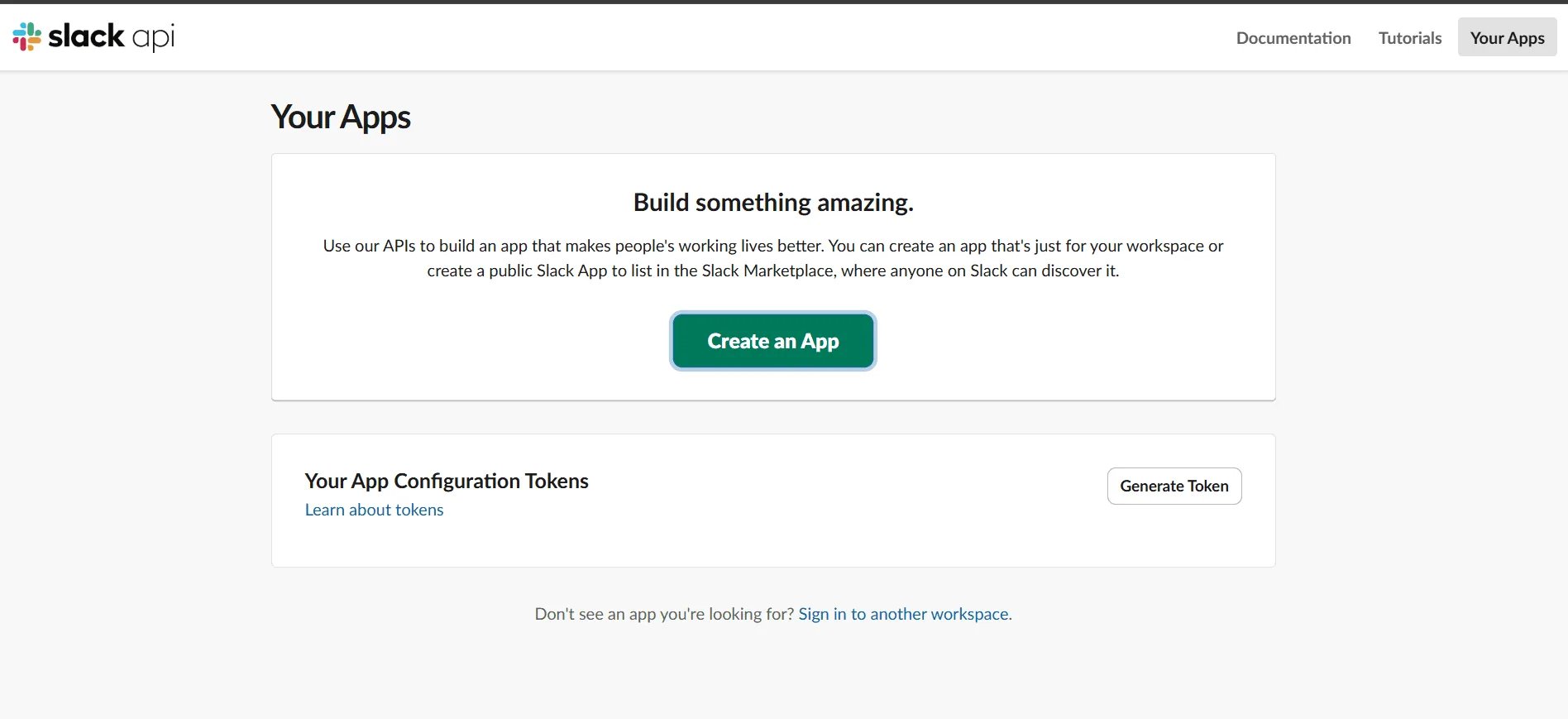
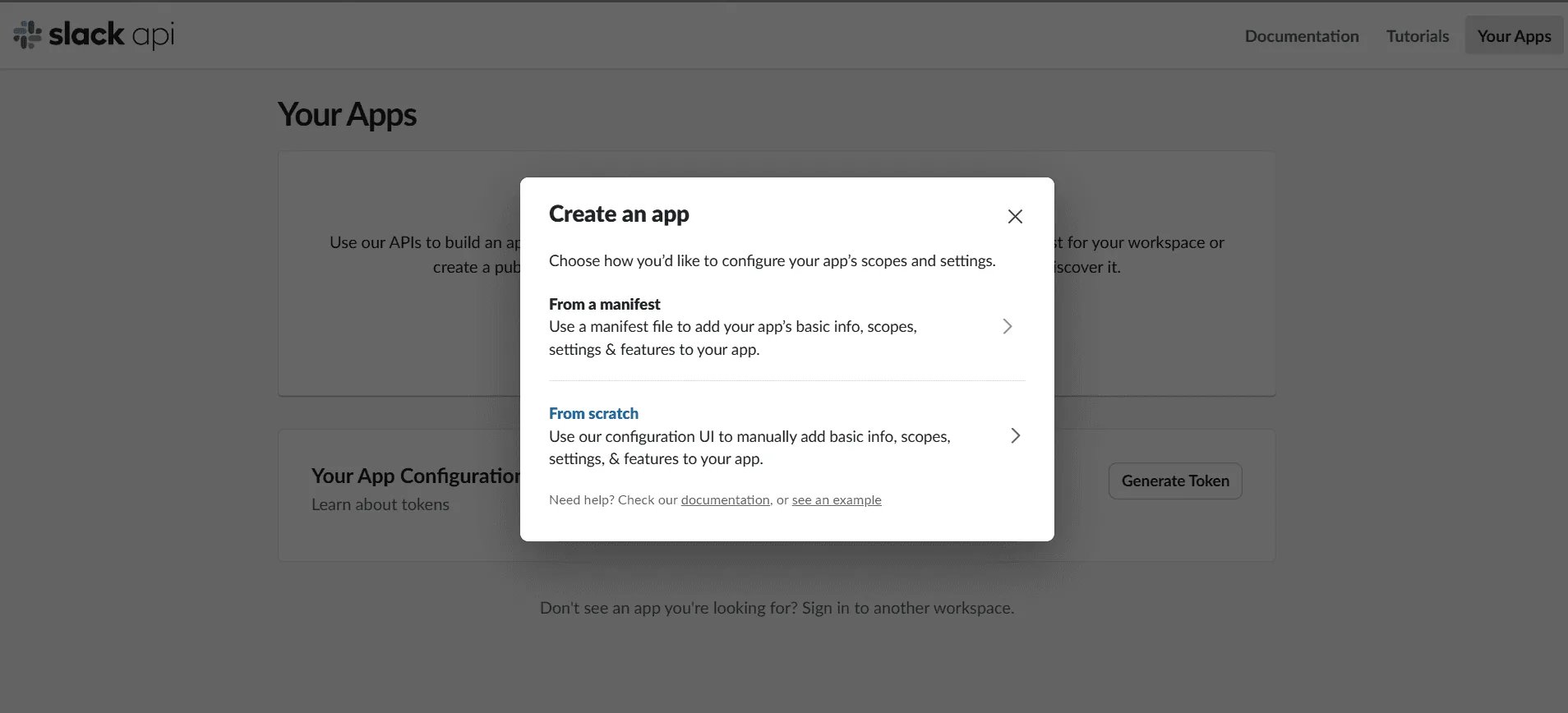
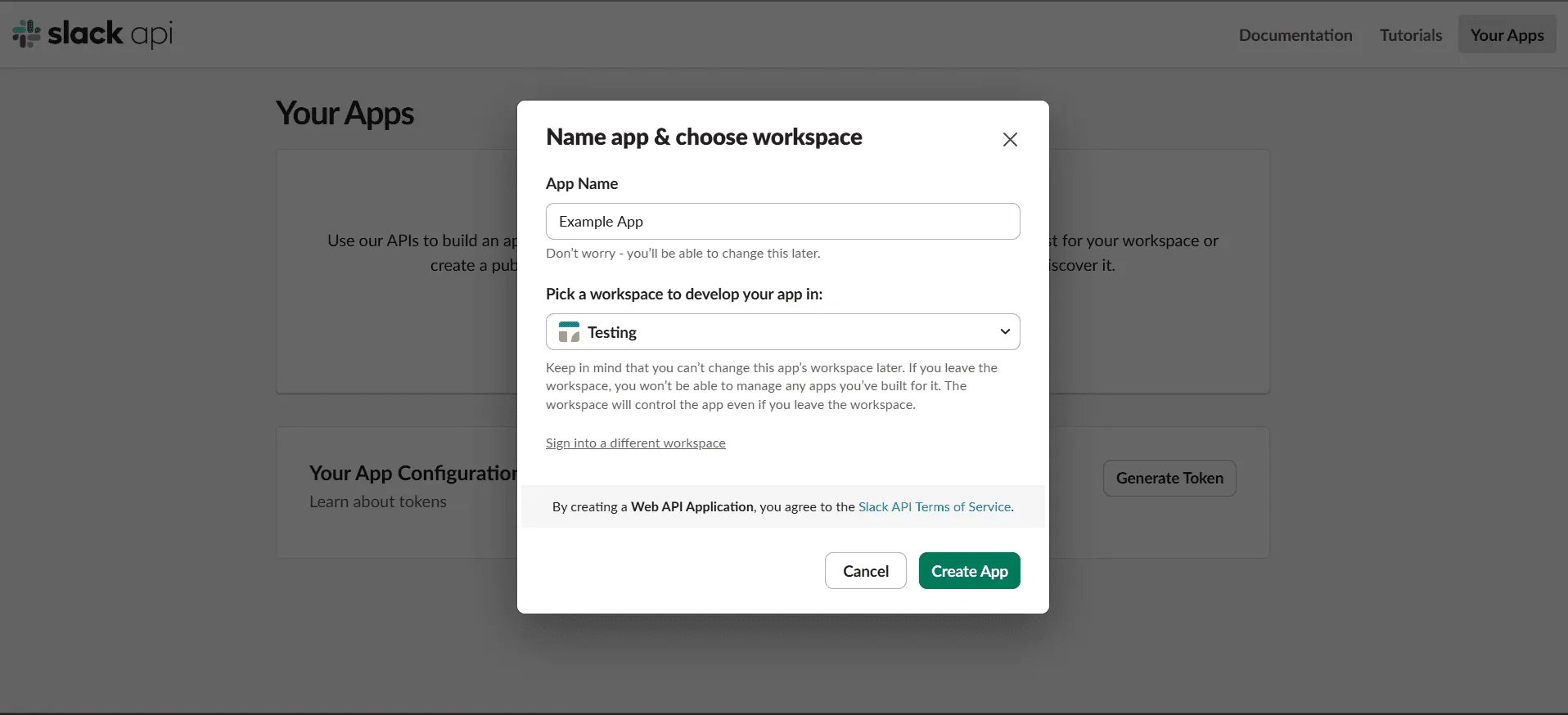
2
Add your redirect URL
In the sidebar, open OAuth & Permissions. Under Redirect URLs, click
Add New Redirect URL, enter your app’s callback route, click Add, then
Save URLs.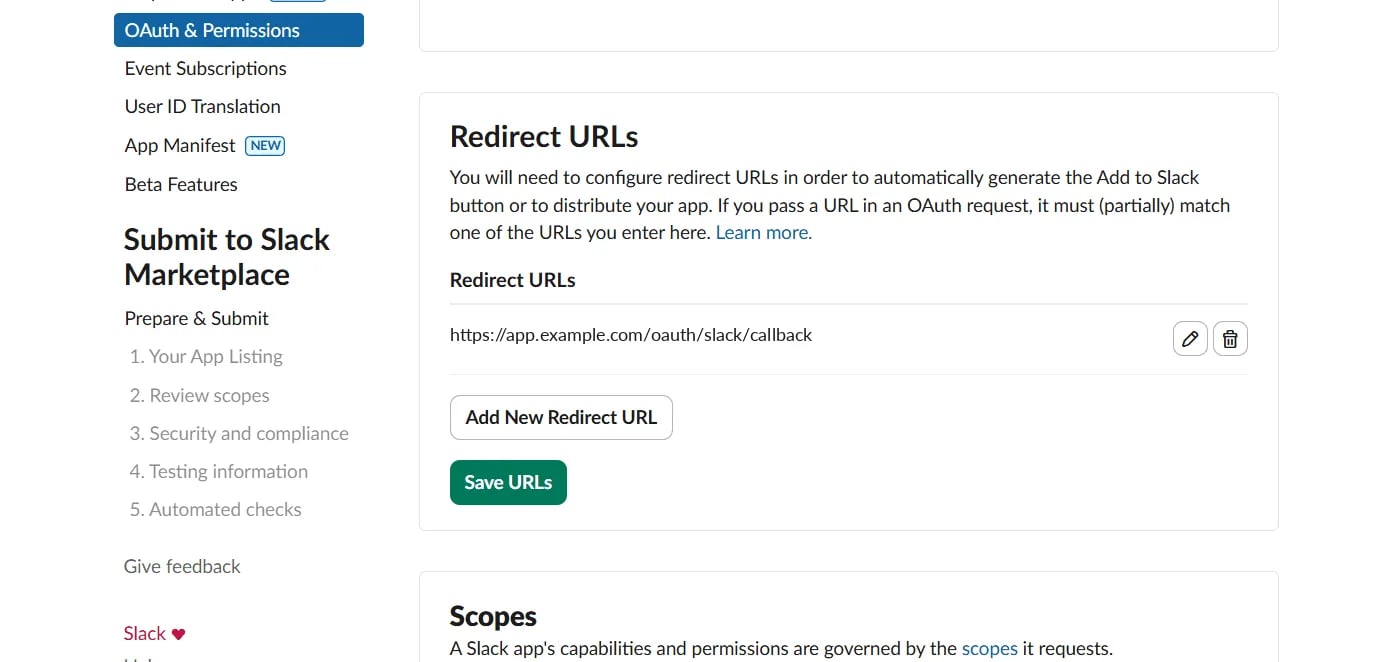
redirect_uri your flow sends, scheme and path included.3
Add the bot scopes
On the same page, scroll to Scopes. Under Bot Token Scopes, click
Add an OAuth Scope once for each scope your tools need.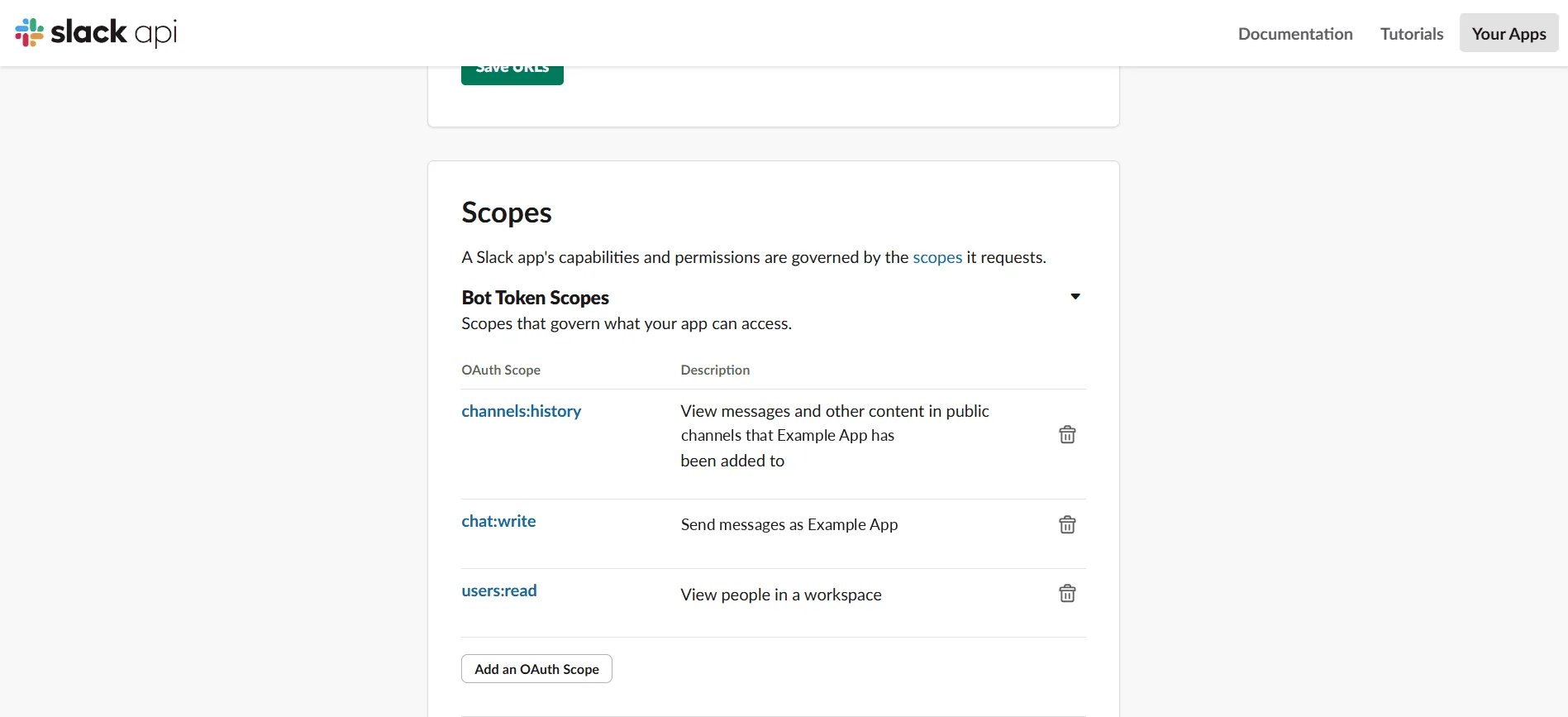
slack scopes
scopes_for(slack.TOOLS) returns the same list,
so if you only hand out some of the tools, ask it for theirs and leave the rest
off. The link your app builds asks for scopes too, and Slack refuses to grant a
scope the app hasn’t been given here.4
Copy the client ID and secret
Open Basic Information and scroll to App Credentials. Copy the
Client ID, then click Show next to Client Secret and copy that too.
The signing secret and verification token are for events, which the flow
doesn’t use.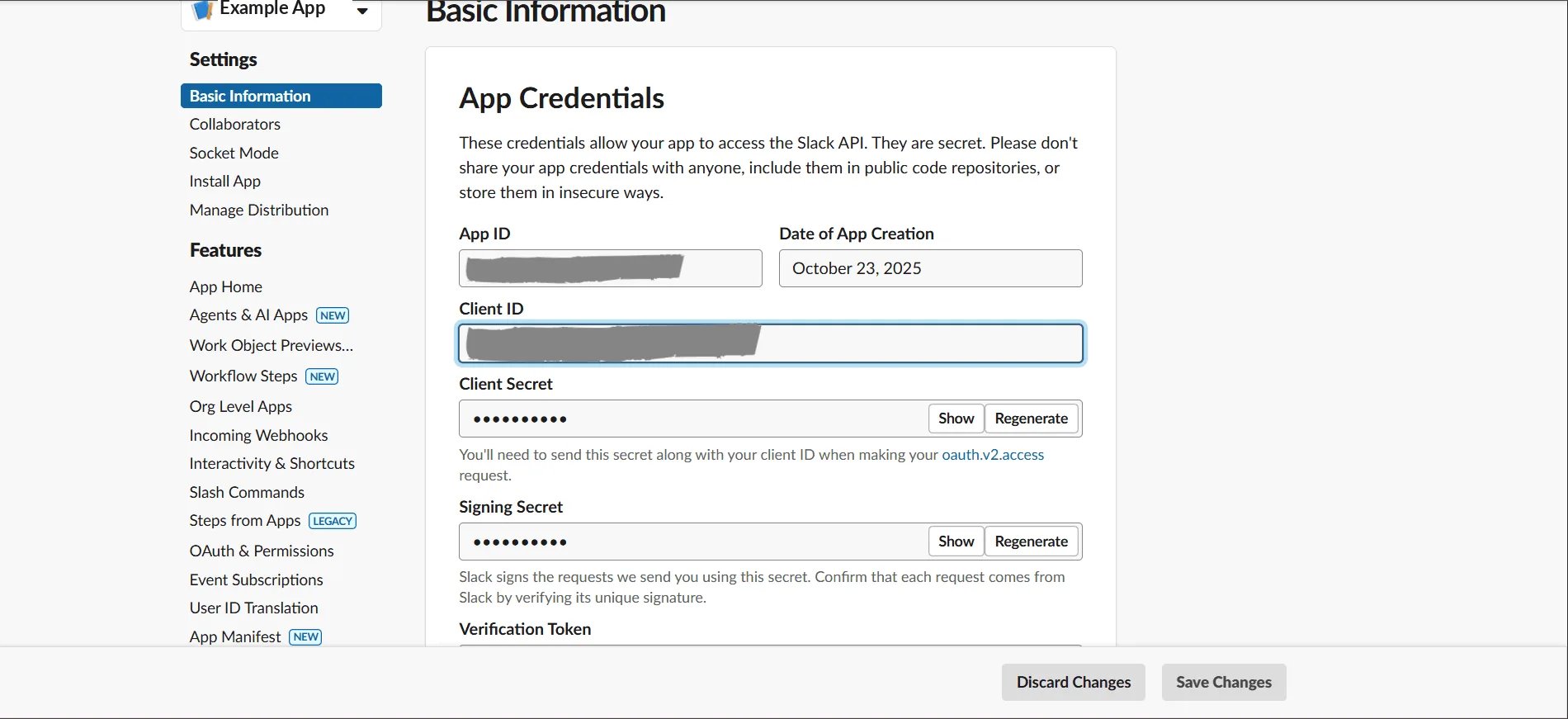
5
Turn on public distribution
Until you do this, only the workspace you picked in step 1 can install the app.
Open Manage Distribution, work through its checklist (it checks that the
redirect URL uses HTTPS and that nothing is hard-coded), then click
Activate Public Distribution.Distributing the app isn’t the same as listing it in the Slack Marketplace.
Workspaces install it from your own link, and you only need Slack’s review if
you also want a Marketplace listing.
6
Connect a workspace
Your app’s “Connect Slack” button opens the link that
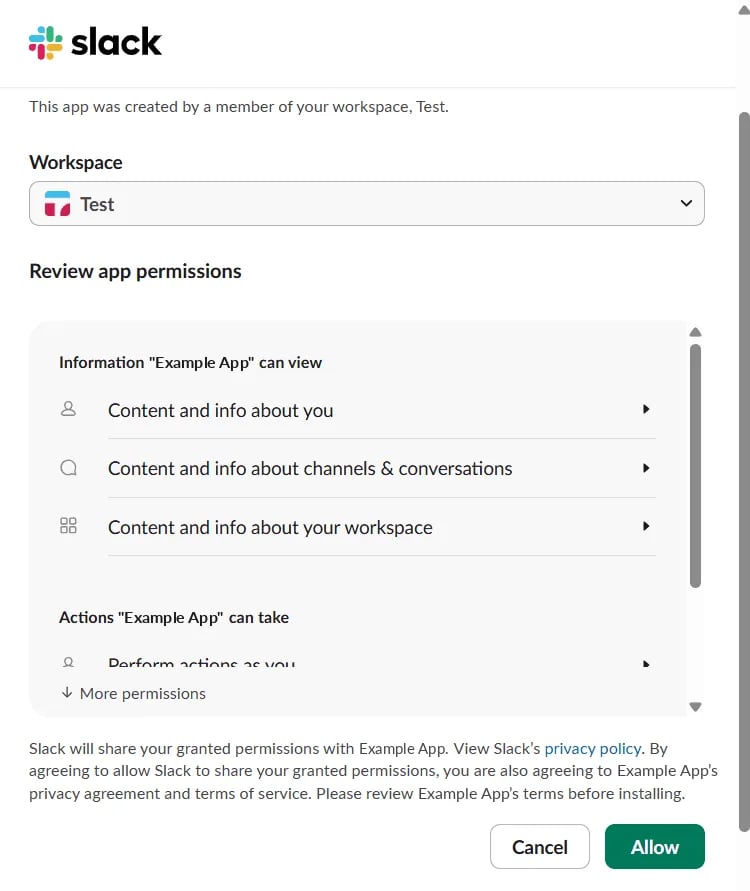
flow.authorize() builds. The user
picks a workspace, reviews what the app can see and do, and clicks Allow.slack_connect.py
expect_refresh_token=False is there because an app with token rotation off
gets a bot token that never expires and no refresh token comes with it.
Slack’s provider page covers
turning rotation on and what changes when you do.When it does not work
“redirect_uri did not match any configured URIs”
“redirect_uri did not match any configured URIs”
The flow sent a
redirect_uri that isn’t on the app’s list. Add it under
OAuth & Permissions → Redirect URLs exactly as the flow sends it, then
Save URLs. Forgetting that last click is the usual cause.A workspace other than yours can't install the app
A workspace other than yours can't install the app
Public distribution is off, so only the development workspace can install.
See step 5.
“invalid_scope”, or missing_scope from a tool later
“invalid_scope”, or missing_scope from a tool later
The link asked for a scope the app doesn’t have, or a tool needs a scope the
grant doesn’t cover. Add it under Bot Token Scopes, then have that
workspace connect again. A grant only covers the scopes it was issued for.
not_in_channel
not_in_channel
The bot reads only the channels it has been invited to. In the channel, type
/invite @your-app.Related
- Slack — the server constant, both token shapes, and refresh under rotation
- Getting the grant — the two routes,
stateand PKCE, inside your app - Every pack — what each pack’s users connect with, and what you store
- Set up Slack — your own workspace, from a manifest