> ## Documentation Index
> Fetch the complete documentation index at: https://docs.r28.ai/charter/llms.txt
> Use this file to discover all available pages before exploring further.
# Set up Google
> The OAuth client every Google pack needs before its first call: ten minutes in the Cloud console, a screenshot for each screen, and a call at the end that proves it worked.
Gmail, Calendar, Sheets, Docs, Drive and Forms take **no API key**. Google
issues credentials only to an app you have registered, so before the first call
you register one: a Cloud project, a consent screen and an OAuth client. It is
free, it takes about ten minutes, and you do it once — the same client serves
all six packs.
Every console link below opens in a new tab. Keep this page in the old one and
come back to it after each step.
**Want to see one call work before any of this?** Google's
[OAuth Playground](https://developers.google.com/oauthplayground) signs you in
with its own client: tick **Gmail API v1 → `https://www.googleapis.com/auth/gmail.modify`**,
**Authorize APIs**, **Exchange authorization code for tokens**, and copy the
access token into `GOOGLE_ACCESS_TOKEN`. Every Google pack reads it. It expires
in an hour and nothing can renew it, which is fine for a look and wrong for
anything you leave running — that is what the steps below are for.
## The console
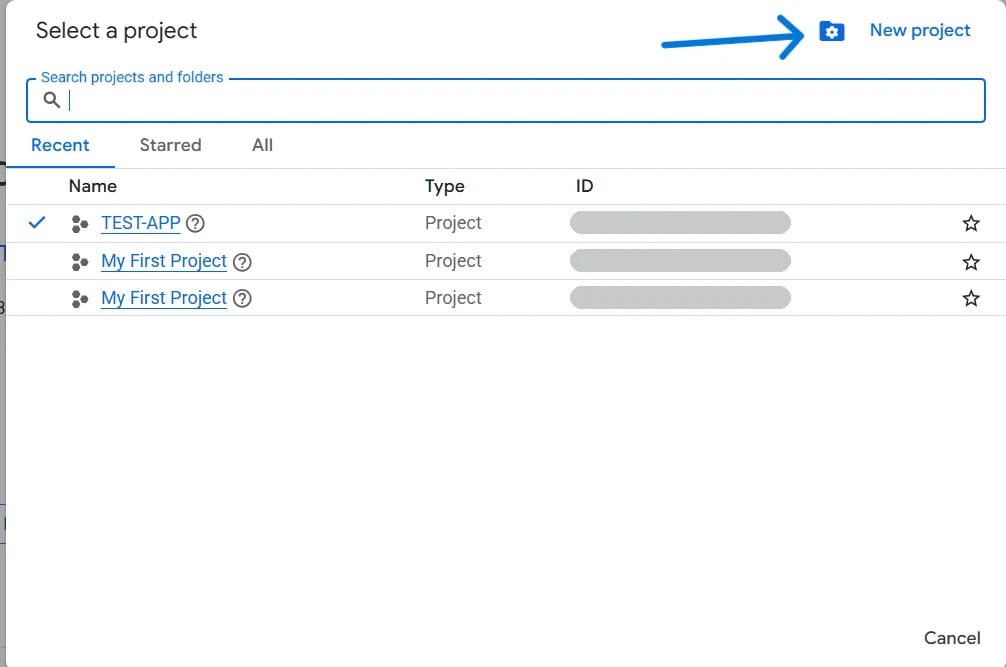
Open [console.cloud.google.com/projectcreate](https://console.cloud.google.com/projectcreate),
name it anything — `charter` will do — and **Create**.
Already have one? Pick it from the project picker at the top of the console
instead. Everything below happens inside whichever project is selected there,
so check it before each step.
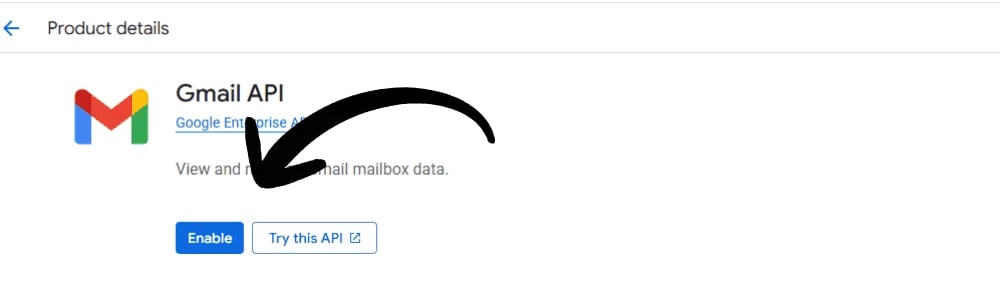
 Each pack calls one Google API, and an API is off until you turn it on. Open
the ones you need and click **Enable**:
| Pack | API | |
| - | - | - |
| [`gmail`](/charter/charter/packs/gmail) | Gmail API | [Enable](https://console.cloud.google.com/apis/library/gmail.googleapis.com) |
| [`gcalendar`](/charter/charter/packs/gcalendar) | Google Calendar API | [Enable](https://console.cloud.google.com/apis/library/calendar-json.googleapis.com) |
| [`gsheets`](/charter/charter/packs/gsheets) | Google Sheets API | [Enable](https://console.cloud.google.com/apis/library/sheets.googleapis.com) |
| [`gdocs`](/charter/charter/packs/gdocs) | Google Docs API | [Enable](https://console.cloud.google.com/apis/library/docs.googleapis.com) |
| [`gdrive`](/charter/charter/packs/gdrive) | Google Drive API | [Enable](https://console.cloud.google.com/apis/library/drive.googleapis.com) |
| [`gforms`](/charter/charter/packs/gforms) | Google Forms API | [Enable](https://console.cloud.google.com/apis/library/forms.googleapis.com) |
Or [all six at once](https://console.cloud.google.com/flows/enableapi?apiid=gmail.googleapis.com,calendar-json.googleapis.com,sheets.googleapis.com,docs.googleapis.com,drive.googleapis.com,forms.googleapis.com):
it asks which project, then turns on the lot.
Each pack calls one Google API, and an API is off until you turn it on. Open
the ones you need and click **Enable**:
| Pack | API | |
| - | - | - |
| [`gmail`](/charter/charter/packs/gmail) | Gmail API | [Enable](https://console.cloud.google.com/apis/library/gmail.googleapis.com) |
| [`gcalendar`](/charter/charter/packs/gcalendar) | Google Calendar API | [Enable](https://console.cloud.google.com/apis/library/calendar-json.googleapis.com) |
| [`gsheets`](/charter/charter/packs/gsheets) | Google Sheets API | [Enable](https://console.cloud.google.com/apis/library/sheets.googleapis.com) |
| [`gdocs`](/charter/charter/packs/gdocs) | Google Docs API | [Enable](https://console.cloud.google.com/apis/library/docs.googleapis.com) |
| [`gdrive`](/charter/charter/packs/gdrive) | Google Drive API | [Enable](https://console.cloud.google.com/apis/library/drive.googleapis.com) |
| [`gforms`](/charter/charter/packs/gforms) | Google Forms API | [Enable](https://console.cloud.google.com/apis/library/forms.googleapis.com) |
Or [all six at once](https://console.cloud.google.com/flows/enableapi?apiid=gmail.googleapis.com,calendar-json.googleapis.com,sheets.googleapis.com,docs.googleapis.com,drive.googleapis.com,forms.googleapis.com):
it asks which project, then turns on the lot.
 Skip this and the first call answers `403` with *"Gmail API has not been used
in project N before or it is disabled"*. It reads like a permission problem and
is not one.
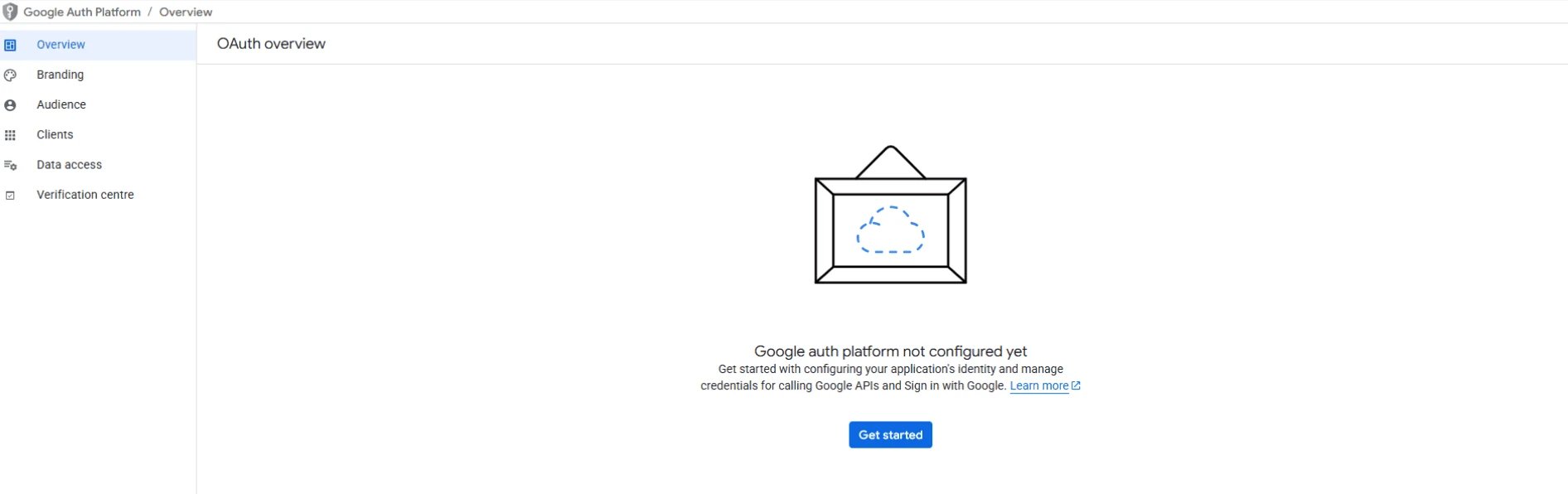
Open [console.cloud.google.com/auth/overview](https://console.cloud.google.com/auth/overview)
— the **Google Auth Platform** — and click **Get started**.
Skip this and the first call answers `403` with *"Gmail API has not been used
in project N before or it is disabled"*. It reads like a permission problem and
is not one.
Open [console.cloud.google.com/auth/overview](https://console.cloud.google.com/auth/overview)
— the **Google Auth Platform** — and click **Get started**.
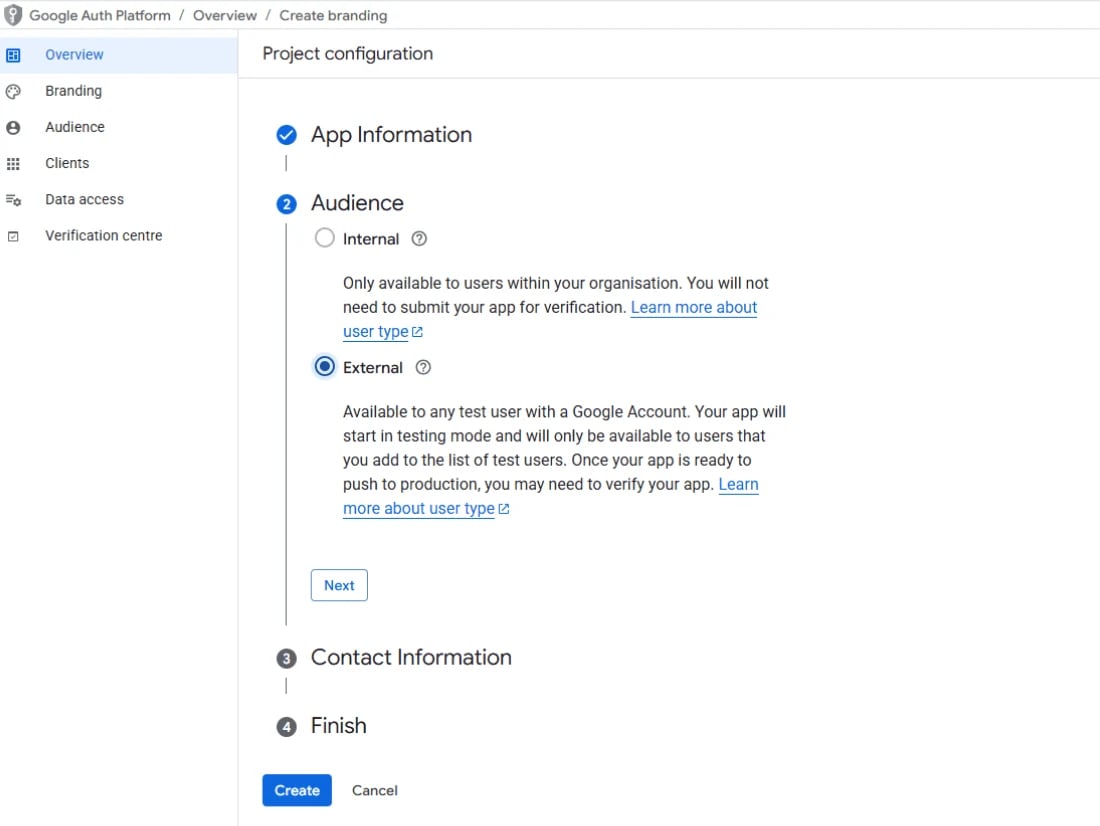
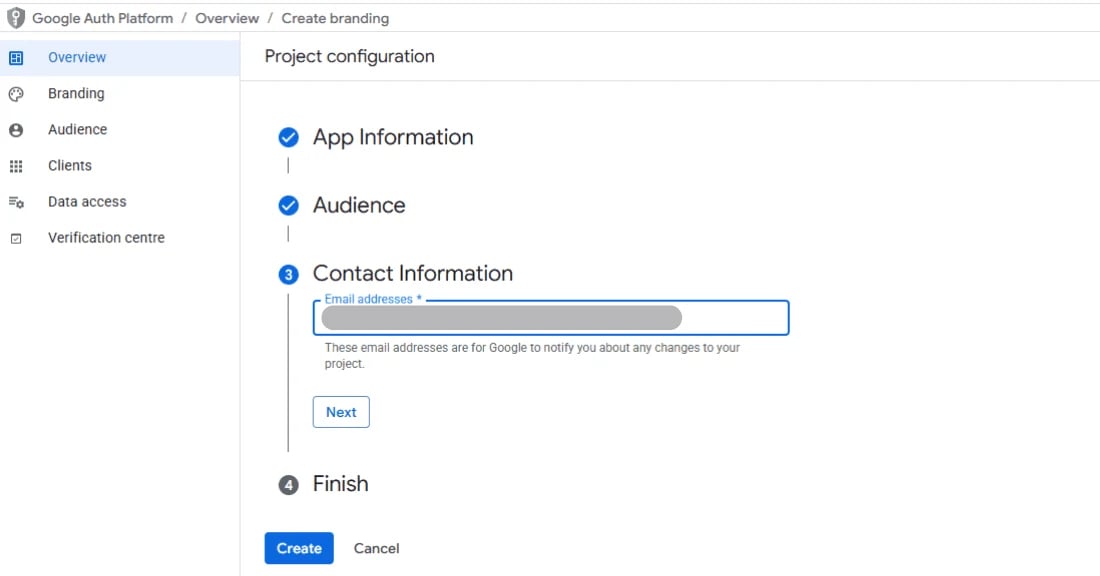
 A four-part form follows:
1. **App information** — an app name, which is what the consent screen will
show you, and a support email, which can be your own.
2. **Audience** — **External**. *Internal* is offered only inside a Google
Workspace organisation; if you see it and every account you will connect
belongs to that organisation, choose it, and step 6 does not apply to you.
3. **Contact information** — your email again.
4. **Finish** — agree to the policy, then **Create**.
A four-part form follows:
1. **App information** — an app name, which is what the consent screen will
show you, and a support email, which can be your own.
2. **Audience** — **External**. *Internal* is offered only inside a Google
Workspace organisation; if you see it and every account you will connect
belongs to that organisation, choose it, and step 6 does not apply to you.
3. **Contact information** — your email again.
4. **Finish** — agree to the policy, then **Create**.
 Back on the overview, click **Create OAuth client** — or go straight to
[console.cloud.google.com/auth/clients/create](https://console.cloud.google.com/auth/clients/create).
Back on the overview, click **Create OAuth client** — or go straight to
[console.cloud.google.com/auth/clients/create](https://console.cloud.google.com/auth/clients/create).
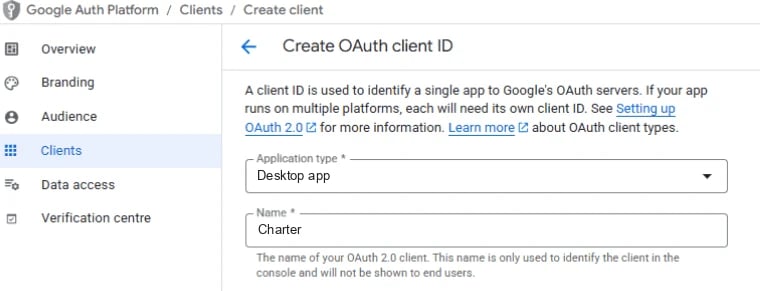
 The application type decides where Google may send the browser after consent,
and it is the one setting here that depends on what you are building:
**Application type: Desktop app**, any name, **Create**.
A desktop client accepts a redirect to `localhost` on any port, which is what
lets the script in step 7 catch Google's answer with nothing registered.
The application type decides where Google may send the browser after consent,
and it is the one setting here that depends on what you are building:
**Application type: Desktop app**, any name, **Create**.
A desktop client accepts a redirect to `localhost` on any port, which is what
lets the script in step 7 catch Google's answer with nothing registered.
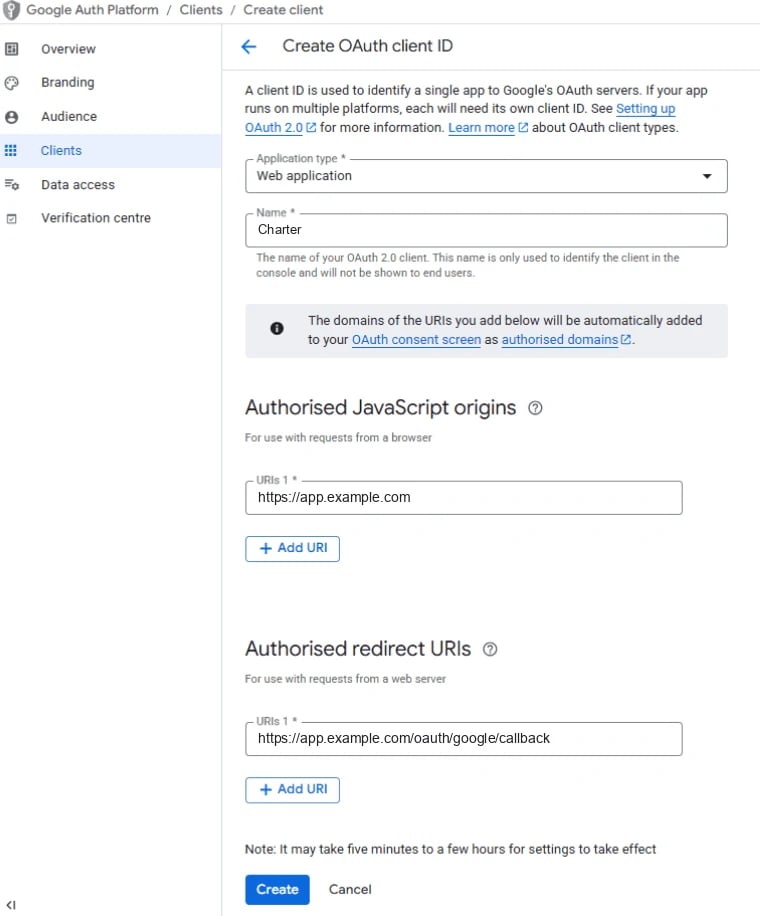
 **Application type: Web application**, then under **Authorised redirect URIs**
the callback route in your app — exactly, scheme and path included.
**Authorised JavaScript origins** only matter when a browser page calls Google
itself; Charter's flow runs on your server, so they can stay empty.
To run step 7 against this client too, add `http://localhost:8765/callback` as a
second redirect URI.
**Application type: Web application**, then under **Authorised redirect URIs**
the callback route in your app — exactly, scheme and path included.
**Authorised JavaScript origins** only matter when a browser page calls Google
itself; Charter's flow runs on your server, so they can stay empty.
To run step 7 against this client too, add `http://localhost:8765/callback` as a
second redirect URI.
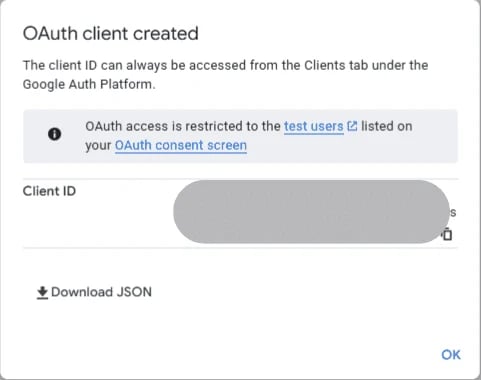
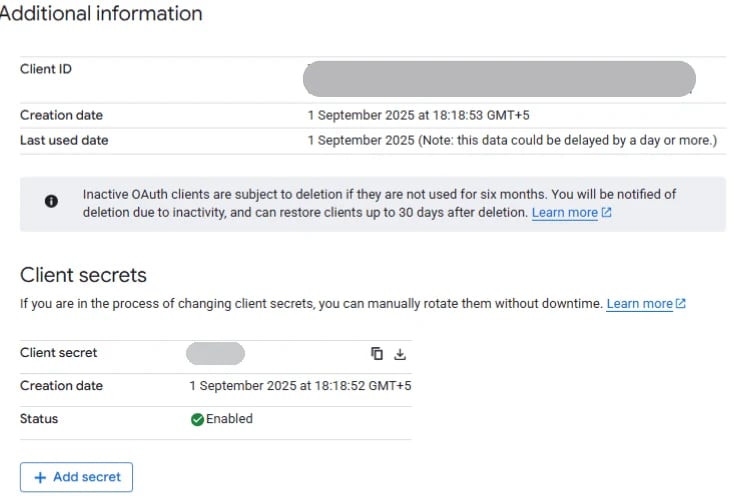
 Google shows a dialog with the client ID and a **Download JSON** link. **Click
the link before OK.** The file holds the client ID and the client secret
together — `client_id` and `client_secret`, under `installed` — and step 7
needs both.
Google shows a dialog with the client ID and a **Download JSON** link. **Click
the link before OK.** The file holds the client ID and the client secret
together — `client_id` and `client_secret`, under `installed` — and step 7
needs both.
 Clicked OK first? Open the client from
[Clients](https://console.cloud.google.com/auth/clients) and use **Add secret**:
a new secret is shown in full once, when it is made, so copy it then.
Clicked OK first? Open the client from
[Clients](https://console.cloud.google.com/auth/clients) and use **Add secret**:
a new secret is shown in full once, when it is made, so copy it then.
 Open [console.cloud.google.com/auth/audience](https://console.cloud.google.com/auth/audience)
and click **Publish app**.
Open [console.cloud.google.com/auth/audience](https://console.cloud.google.com/auth/audience)
and click **Publish app**.
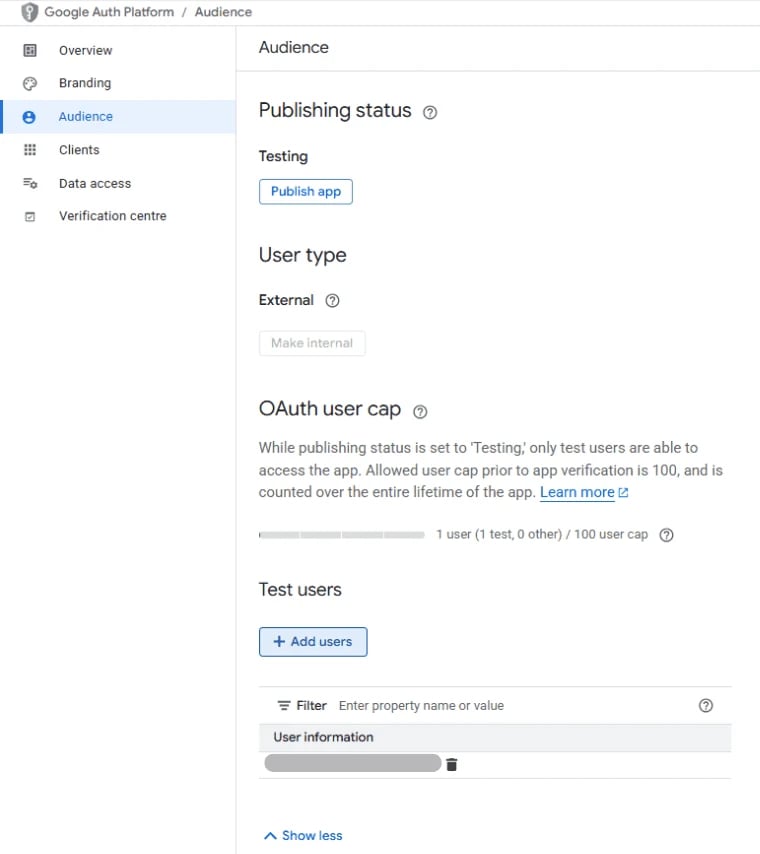 **This decides whether the token survives the week.** An app left in
*Testing* gets refresh tokens that expire after seven days — the works-all-week,
`invalid_grant`-on-Monday symptom, which is this setting rather than a bug in
your storage. It also refuses consent to anyone not listed under **Test users**.
Published, consent shows *"Google hasn't verified this app"*: click
**Advanced**, then **Go to *your app's name***. For your own account that warning
is the whole cost. Verification — and for a restricted scope like
`gmail.modify`, a security assessment — is what letting other people connect
eventually needs, and it takes weeks;
[check Google's current rules](https://developers.google.com/identity/protocols/oauth2/production-readiness/policy-compliance)
before planning around it.
Rather stay in Testing? Then **Add users** with your own address, and expect to
repeat step 7 every week.
## The grant
[`examples/connect_google.py`](https://github.com/r28ai/charter/blob/main/examples/connect_google.py)
runs the consent flow once, from a terminal. Give it the two values from the
file in step 5:
```bash theme={null}
export GOOGLE_CLIENT_ID=1234-abc.apps.googleusercontent.com
export GOOGLE_CLIENT_SECRET=GOCSPX-...
curl -O https://raw.githubusercontent.com/r28ai/charter/main/examples/connect_google.py
uv run --with charter-ai python connect_google.py
```
It prints a URL. Open it, pick your account, click through the unverified-app
warning, and **leave every box ticked**: Google lets you untick a permission
and still finishes the flow, and the tools that needed it then answer `403`.
The script names any you dropped. The tab says *Connected*, and the terminal
prints the third value:
```bash theme={null}
export GOOGLE_REFRESH_TOKEN=1//0g...
```
It asks for every scope the six packs' tools declare, so one grant covers all
of them; take a pack out of the tuple in `main()` to ask for less. The scopes
are listed on [Google's provider page](/charter/charter/auth/providers/google#scopes), and
[`scopes_for`](/charter/charter/reference/oauth#scopes_for) is the call that reads them off the
tools.
The script is not a library feature. It is a page you can read, and only two of
its calls are Charter's: `flow.authorize()` builds the URL with PKCE and a
`state`, and `flow.exchange()` trades the code for tokens. Everything between
them — the redirect, the wait, the callback — is the script's, and in a web app
it would be your framework's: [getting the grant](/charter/charter/auth/oauth-flow).
Put the three `export` lines — the two you typed and the one printed — in your
shell profile, a `.env` file, or your secret manager. That is the whole
configuration: every Google pack, and the [MCP server](/charter/charter/using/mcp), renews an
access token from them on its own.
Not the access token. It lasts about an hour, and the client fetches a fresh one
whenever it needs one.
**Google does not rotate refresh tokens**, so the value printed is the value you
keep — a refresh returns a new access token and the same refresh token. Slack
and GitHub do rotate, and a server that does needs the `on_refresh` hook to
write the new one back, which is
[what varies between servers](/charter/charter/auth/authorization-servers).
To build the client yourself instead, an [`OAuth2Client`](/charter/charter/reference/oauth#oauth2client)
turns those three values into a credential provider: it fetches an access
token, caches it, and renews it before it lapses.
```python google_client.py theme={null}
from charter.auth import OAuth2Client
from charter.packs import gcalendar, gdocs, gdrive, gforms, gmail, gsheets
google = OAuth2Client(
GOOGLE, # the server constant, from /auth/providers/google
client_id=os.environ["GOOGLE_CLIENT_ID"],
client_secret=os.environ["GOOGLE_CLIENT_SECRET"],
refresh_token=os.environ["GOOGLE_REFRESH_TOKEN"],
)
for pack in (gmail, gcalendar, gsheets, gdocs, gdrive, gforms):
pack.configure(credential_provider=google)
```
One client across six packs on purpose: the access token is fetched once and
cached once, so a run that sends a mail, files a calendar event and appends a
row spends one refresh rather than three.
A refresh token is not proof that the scopes are right — that failure surfaces
as a `403` from the API, hours later, inside an agent. One call settles it now:
```python verify_scopes.py theme={null}
import asyncio
async def main():
labels = await gmail.labels_list.ainvoke(userId="me")
print([label["name"] for label in labels["labels"]])
asyncio.run(main())
```
`INBOX`, `SENT`, and whatever else you have made. It costs 1 unit of Gmail's
quota, the cheapest call in the pack.
That is the loop closed: a client you registered, a grant you own, a token the
runtime renews without being asked, and a response that came back. Hand
`gmail.TOOLS` to an [adapter](/charter/charter/using/adapters) and the same credential serves
every tool in all six packs.
## When it does not work
The API for that pack is off in the project the client belongs to — step 2.
Enabling takes a minute to reach the API. If it is on, check the project
picker: the client and the API have to be in the same project.
The app is in *Testing* and the account you picked is not a test user. Publish
it, or add the address under **Test users** — step 6.
The app was in *Testing* when the token was issued, and testing tokens expire
after seven days. Publish it, then run step 7 again; the new token does not
expire. A grant revoked at
[myaccount.google.com/permissions](https://myaccount.google.com/permissions)
answers the same way, as does a client deleted for six months of disuse.
A web client is being sent to a redirect URI it does not list, character for
character. Add it in the client's settings, or use a Desktop app client for
the script, which needs nothing registered.
The grant does not cover the tool. Either a box was unticked on the consent
screen, or the pack was added after the grant was issued — a grant covers the
scopes it was issued for and nothing else. Run step 7 again with that pack
in the script's tuple.
Expected for an app you published yourself. **Advanced → Go to *your app's
name***. It goes away only with verification, which you need when other
people connect, not for your own account.
## Your users' accounts
The console steps are the same, with a **Web application** client (step 4's
second tab). What changes is everything after: the consent route lives in your
app, each user's grant is stored against them, and many users means
verification. [Getting the grant](/charter/charter/auth/oauth-flow) is the route;
[serving many users](/charter/charter/auth/authorization-servers#serving-many-users) is the
per-user cache.
## What this does not cover
Named rather than left for you to discover:
* **Rotation.** Google hands back the same refresh token; Slack and GitHub do
not. [What varies between servers](/charter/charter/auth/authorization-servers).
* **Revocation.** A grant killed at `myaccount.google.com/permissions` answers
`invalid_grant`, and Charter then stops asking for 60 seconds rather than
hammering a rate-limited endpoint —
[refresh behaviour](/charter/charter/auth/providers/google#refresh-behaviour).
* **The rest of Google's silent failures** — the hundred-refresh-token cap, what
`login_hint` does and does not guarantee —
[what fails silently](/charter/charter/auth/providers/google#what-fails-silently).
## Related
* [Google](/charter/charter/auth/providers/google) — the server constant, every scope, the hundred-token cap and what else fails silently
* [Getting the grant](/charter/charter/auth/oauth-flow) — the same two protocol steps, inside your app
* [Authorization servers](/charter/charter/auth/authorization-servers) — refresh, caching, many users
* [Every pack](/charter/charter/auth/your-own-account) — what the other packs need, in one table
* [Credentials](/charter/charter/reference/credentials) — every credential provider, as reference
This documentation is built and hosted on [Mintlify](https://mintlify.com), a developer documentation platform.
**This decides whether the token survives the week.** An app left in
*Testing* gets refresh tokens that expire after seven days — the works-all-week,
`invalid_grant`-on-Monday symptom, which is this setting rather than a bug in
your storage. It also refuses consent to anyone not listed under **Test users**.
Published, consent shows *"Google hasn't verified this app"*: click
**Advanced**, then **Go to *your app's name***. For your own account that warning
is the whole cost. Verification — and for a restricted scope like
`gmail.modify`, a security assessment — is what letting other people connect
eventually needs, and it takes weeks;
[check Google's current rules](https://developers.google.com/identity/protocols/oauth2/production-readiness/policy-compliance)
before planning around it.
Rather stay in Testing? Then **Add users** with your own address, and expect to
repeat step 7 every week.
## The grant
[`examples/connect_google.py`](https://github.com/r28ai/charter/blob/main/examples/connect_google.py)
runs the consent flow once, from a terminal. Give it the two values from the
file in step 5:
```bash theme={null}
export GOOGLE_CLIENT_ID=1234-abc.apps.googleusercontent.com
export GOOGLE_CLIENT_SECRET=GOCSPX-...
curl -O https://raw.githubusercontent.com/r28ai/charter/main/examples/connect_google.py
uv run --with charter-ai python connect_google.py
```
It prints a URL. Open it, pick your account, click through the unverified-app
warning, and **leave every box ticked**: Google lets you untick a permission
and still finishes the flow, and the tools that needed it then answer `403`.
The script names any you dropped. The tab says *Connected*, and the terminal
prints the third value:
```bash theme={null}
export GOOGLE_REFRESH_TOKEN=1//0g...
```
It asks for every scope the six packs' tools declare, so one grant covers all
of them; take a pack out of the tuple in `main()` to ask for less. The scopes
are listed on [Google's provider page](/charter/charter/auth/providers/google#scopes), and
[`scopes_for`](/charter/charter/reference/oauth#scopes_for) is the call that reads them off the
tools.
The script is not a library feature. It is a page you can read, and only two of
its calls are Charter's: `flow.authorize()` builds the URL with PKCE and a
`state`, and `flow.exchange()` trades the code for tokens. Everything between
them — the redirect, the wait, the callback — is the script's, and in a web app
it would be your framework's: [getting the grant](/charter/charter/auth/oauth-flow).
Put the three `export` lines — the two you typed and the one printed — in your
shell profile, a `.env` file, or your secret manager. That is the whole
configuration: every Google pack, and the [MCP server](/charter/charter/using/mcp), renews an
access token from them on its own.
Not the access token. It lasts about an hour, and the client fetches a fresh one
whenever it needs one.
**Google does not rotate refresh tokens**, so the value printed is the value you
keep — a refresh returns a new access token and the same refresh token. Slack
and GitHub do rotate, and a server that does needs the `on_refresh` hook to
write the new one back, which is
[what varies between servers](/charter/charter/auth/authorization-servers).
To build the client yourself instead, an [`OAuth2Client`](/charter/charter/reference/oauth#oauth2client)
turns those three values into a credential provider: it fetches an access
token, caches it, and renews it before it lapses.
```python google_client.py theme={null}
from charter.auth import OAuth2Client
from charter.packs import gcalendar, gdocs, gdrive, gforms, gmail, gsheets
google = OAuth2Client(
GOOGLE, # the server constant, from /auth/providers/google
client_id=os.environ["GOOGLE_CLIENT_ID"],
client_secret=os.environ["GOOGLE_CLIENT_SECRET"],
refresh_token=os.environ["GOOGLE_REFRESH_TOKEN"],
)
for pack in (gmail, gcalendar, gsheets, gdocs, gdrive, gforms):
pack.configure(credential_provider=google)
```
One client across six packs on purpose: the access token is fetched once and
cached once, so a run that sends a mail, files a calendar event and appends a
row spends one refresh rather than three.
A refresh token is not proof that the scopes are right — that failure surfaces
as a `403` from the API, hours later, inside an agent. One call settles it now:
```python verify_scopes.py theme={null}
import asyncio
async def main():
labels = await gmail.labels_list.ainvoke(userId="me")
print([label["name"] for label in labels["labels"]])
asyncio.run(main())
```
`INBOX`, `SENT`, and whatever else you have made. It costs 1 unit of Gmail's
quota, the cheapest call in the pack.
That is the loop closed: a client you registered, a grant you own, a token the
runtime renews without being asked, and a response that came back. Hand
`gmail.TOOLS` to an [adapter](/charter/charter/using/adapters) and the same credential serves
every tool in all six packs.
## When it does not work
The API for that pack is off in the project the client belongs to — step 2.
Enabling takes a minute to reach the API. If it is on, check the project
picker: the client and the API have to be in the same project.
The app is in *Testing* and the account you picked is not a test user. Publish
it, or add the address under **Test users** — step 6.
The app was in *Testing* when the token was issued, and testing tokens expire
after seven days. Publish it, then run step 7 again; the new token does not
expire. A grant revoked at
[myaccount.google.com/permissions](https://myaccount.google.com/permissions)
answers the same way, as does a client deleted for six months of disuse.
A web client is being sent to a redirect URI it does not list, character for
character. Add it in the client's settings, or use a Desktop app client for
the script, which needs nothing registered.
The grant does not cover the tool. Either a box was unticked on the consent
screen, or the pack was added after the grant was issued — a grant covers the
scopes it was issued for and nothing else. Run step 7 again with that pack
in the script's tuple.
Expected for an app you published yourself. **Advanced → Go to *your app's
name***. It goes away only with verification, which you need when other
people connect, not for your own account.
## Your users' accounts
The console steps are the same, with a **Web application** client (step 4's
second tab). What changes is everything after: the consent route lives in your
app, each user's grant is stored against them, and many users means
verification. [Getting the grant](/charter/charter/auth/oauth-flow) is the route;
[serving many users](/charter/charter/auth/authorization-servers#serving-many-users) is the
per-user cache.
## What this does not cover
Named rather than left for you to discover:
* **Rotation.** Google hands back the same refresh token; Slack and GitHub do
not. [What varies between servers](/charter/charter/auth/authorization-servers).
* **Revocation.** A grant killed at `myaccount.google.com/permissions` answers
`invalid_grant`, and Charter then stops asking for 60 seconds rather than
hammering a rate-limited endpoint —
[refresh behaviour](/charter/charter/auth/providers/google#refresh-behaviour).
* **The rest of Google's silent failures** — the hundred-refresh-token cap, what
`login_hint` does and does not guarantee —
[what fails silently](/charter/charter/auth/providers/google#what-fails-silently).
## Related
* [Google](/charter/charter/auth/providers/google) — the server constant, every scope, the hundred-token cap and what else fails silently
* [Getting the grant](/charter/charter/auth/oauth-flow) — the same two protocol steps, inside your app
* [Authorization servers](/charter/charter/auth/authorization-servers) — refresh, caching, many users
* [Every pack](/charter/charter/auth/your-own-account) — what the other packs need, in one table
* [Credentials](/charter/charter/reference/credentials) — every credential provider, as reference
This documentation is built and hosted on [Mintlify](https://mintlify.com), a developer documentation platform.